Teams
Invite other writers to collaborate on your story. Team members can edit scenes, choices, variables, and other story content based on their assigned role.
Team Roles
Storyfall has three team roles with different permission levels:
Creator
The story owner. Every story has exactly one creator.
- Full editing access.
- Publish new versions.
- Manage team members (invite, remove, change roles).
- Edit story settings and metadata.
- View analytics.
- Delete the story.
Writer
A collaborator with editing access.
- Full editing access to scenes, choices, variables, and all story content.
- View analytics.
- Export the story as HTML or JSON.
- Can’t publish, manage team members, or change story settings.
Reader
Read-only access to the unpublished draft.
- Preview and play the draft story.
- Can’t edit content, publish, or manage team members.
Inviting Team Members
To invite someone to your story’s team:
- Open your story in the editor.
- Open Settings and click the Team tab.
- Enter the person’s email address or Storyfall username.
- Choose a role (Writer or Reader).
- Click Send Invitation.
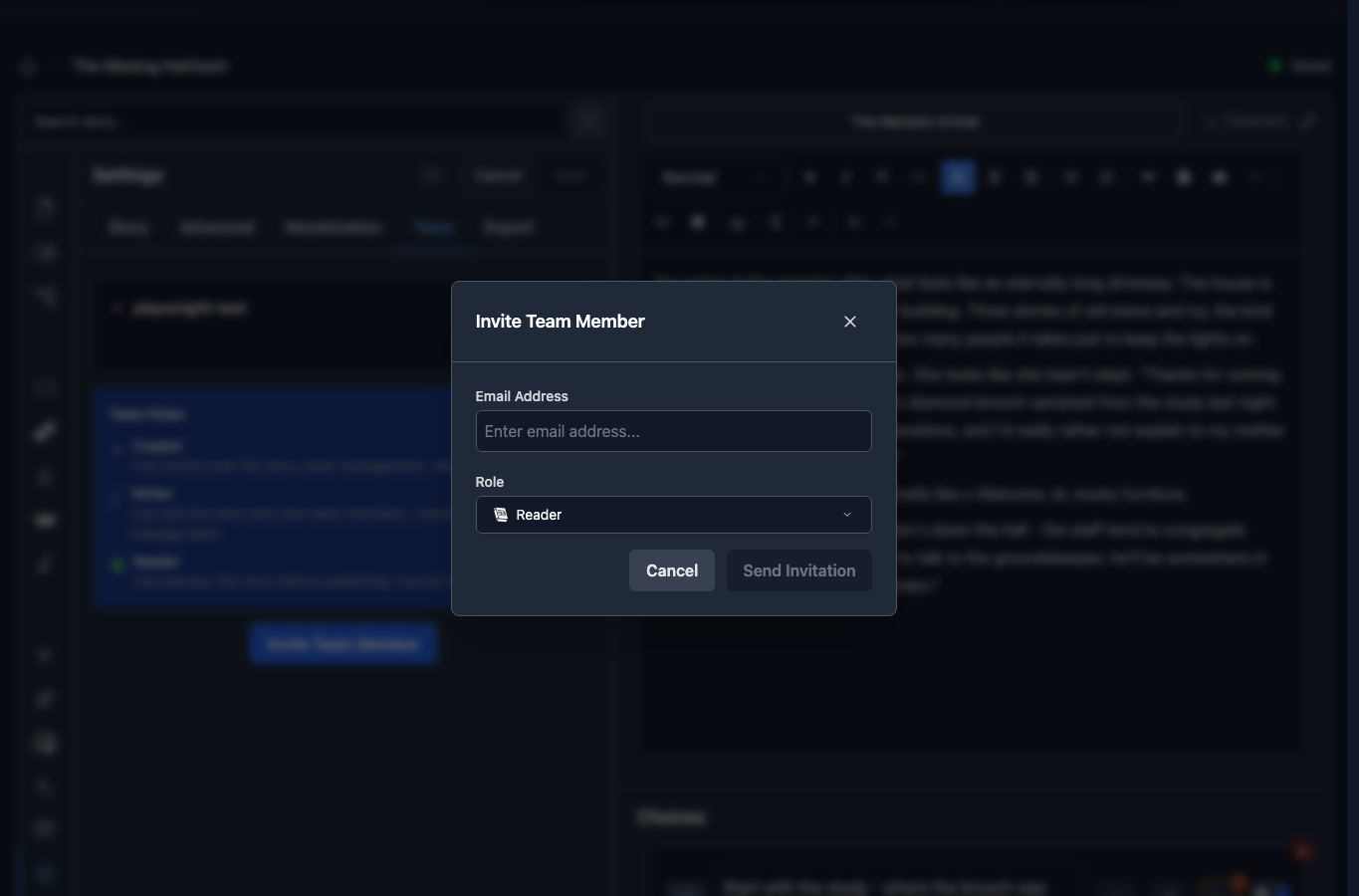
Inviting by Username
If you know someone’s Storyfall username, type it directly into the invite field. The system will find their account and send them an in-app notification. Username invites only work for existing Storyfall users.
Inviting by Email
If you use an email address, there are two possibilities:
- Existing user: They’ll receive an email and an in-app notification. They can accept or decline from their Workshop > Teams tab.
- New user: They’ll receive an email invitation with a link to accept or decline. When they create an account, any pending invitations are automatically linked to their new profile.
Quick Re-Invite
When inviting team members, you’ll see a list of people you’ve previously invited across all your stories. This makes it easy to re-invite frequent collaborators without typing their details again.
Managing Your Team
Changing Roles
As the creator, you can change any team member’s role:
- Open the Team tab in Settings.
- Click the role dropdown next to a member’s name.
- Select the new role.
The member is notified when their role changes.
Removing Members
As the creator, you can remove any team member from the Team tab in Settings. Team members can also leave on their own.
Canceling Invitations
If someone hasn’t responded to an invitation yet, the creator can cancel it from the Team tab in Settings.
Viewing Your Teams
To see all the stories you’re collaborating on:
- Go to your Workshop.
- Click the Teams tab.
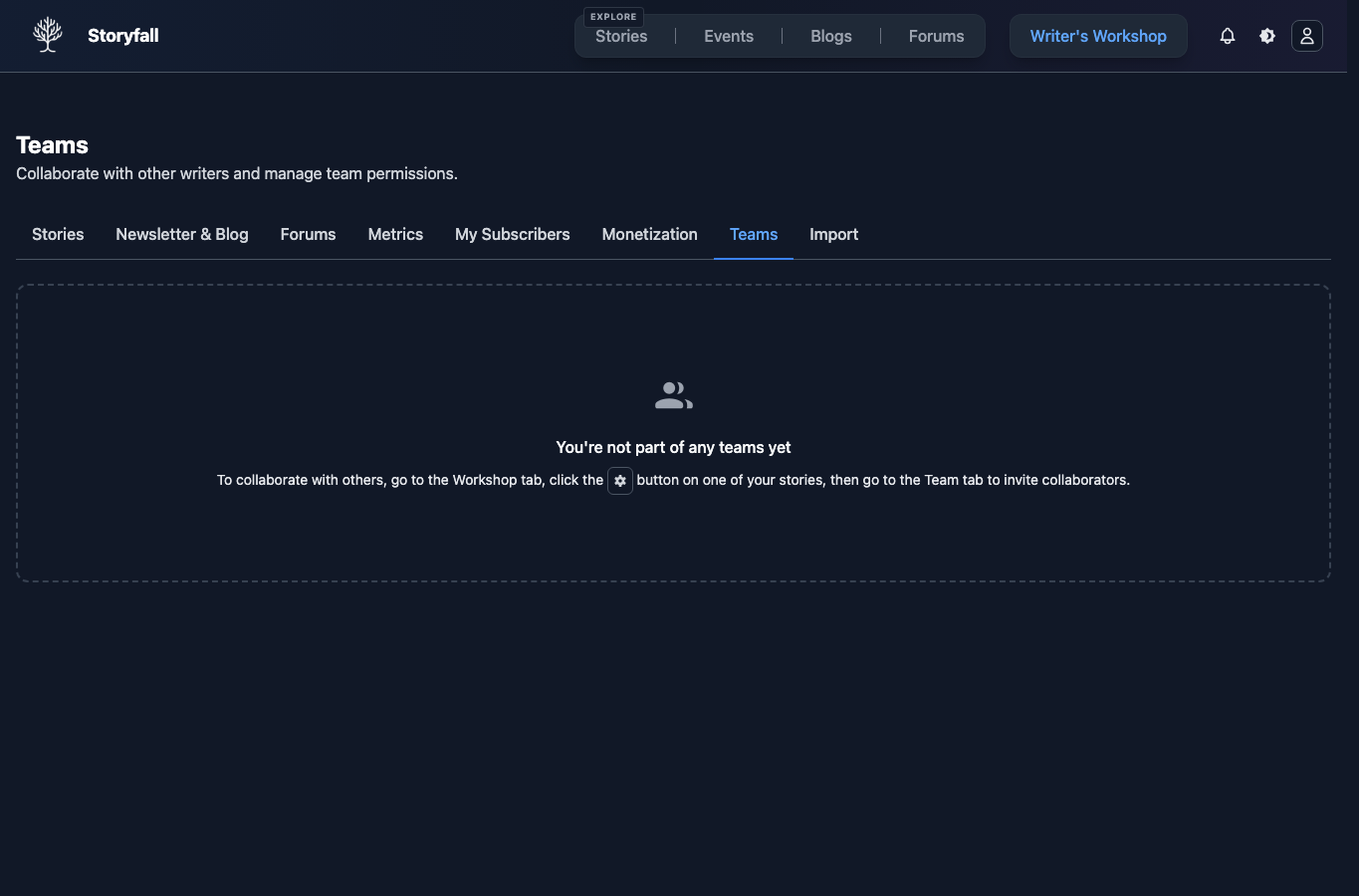
This shows pending invitations you haven’t responded to yet and all team stories you’re a member of. Stories where you’re the sole creator appear in your main workshop page instead.
Next Steps
- Collaboration - Writer comments, scene annotations, and real-time editing.
- Editor - Learn about the story editor.
- Variables & Conditions - Add dynamic content to your story.
- Publishing Your Story - Share your finished story with readers.