Input Choices
Input choices let you collect text input from players during gameplay. The text they enter is stored in a variable, making it available throughout the rest of the story.
Choice Types
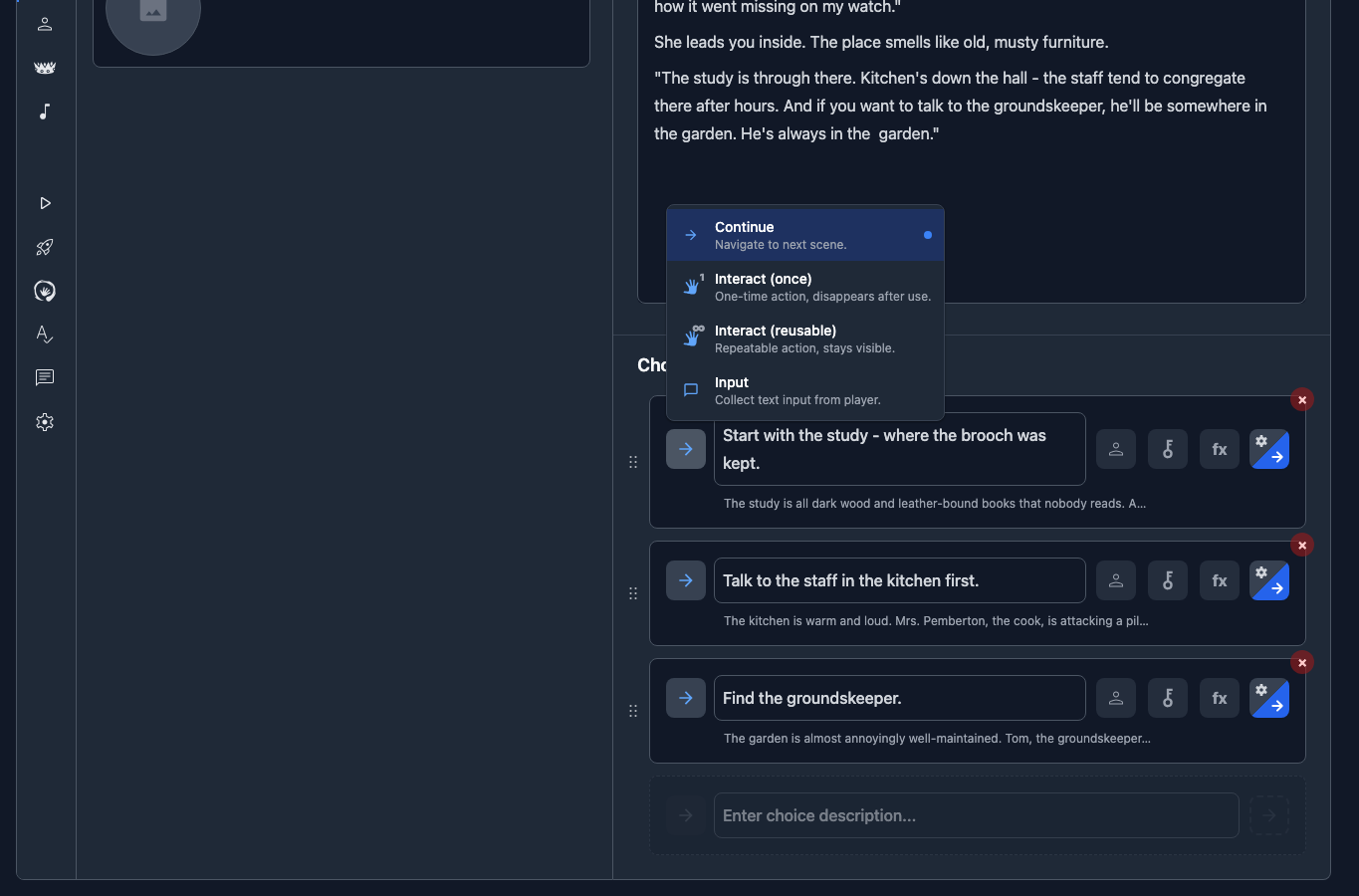
For context, here are all the choice types in Storyfall:
| Type | Description |
|---|---|
| Continue | Navigates the player to the next scene. |
| Interact (once) | Triggers effects and stays on the current scene. Disappears after use. |
| Interact (reusable) | Same as interact, but can be selected multiple times. |
| Input | Displays a text field and collects input from the player. |
| Dropdown (once) | Shows a dropdown with predefined options that sets a variable. One-time. |
| Dropdown (reusable) | Same as dropdown, but the reader can change their selection. |
| Back | Dynamically returns the player to the previous scene they were on. |
| Branch | Routes to one of several scenes based on conditions or probability. |
Input Choice Behavior
An input choice behaves differently depending on whether you set a target scene:
| Target Scene | Behavior | After Use |
|---|---|---|
| Has target scene | Acts like a Continue choice - collects input, then navigates to the target scene. | Remains visible |
| No target scene | Acts like an Interact choice - collects input and stays on the current scene. | Disappears after use |
- Collect input and continue: Set a target scene to gather input (such as a name) and then advance the story.
- Collect input and stay: Leave the target empty to gather input without leaving the scene. Good for multi-step input on the same scene.
Configuration
When you create an input choice, you can configure the following:
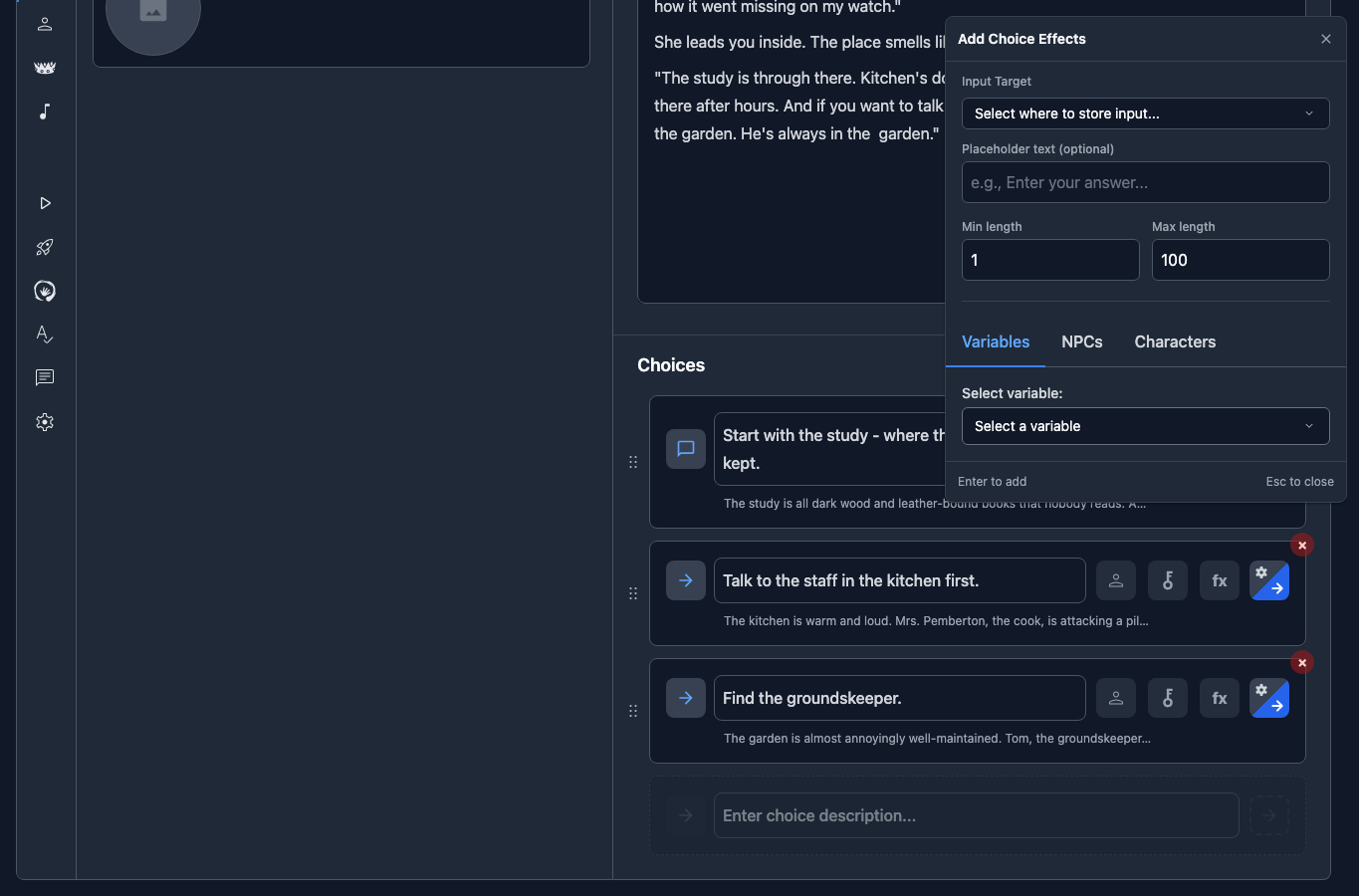
Target Variable
Select which variable the player’s input will be stored in. You can choose:
- playerName - A built-in system variable (see below).
- Any string variable - Any custom string variable you’ve created.
Placeholder Text
Optional hint text displayed inside the input field before the player types anything (e.g. “Enter your name…”).
Min / Max Length
Control how short or long the input can be:
- Minimum length: Defaults to 1 character.
- Maximum length: Defaults to 100 characters.
Players see a character counter when limits are set, and the submit button is disabled until the input meets the minimum length.
The playerName System Variable
Every story automatically includes a special playerName variable. You can target it from an input choice to let players name or rename their character at any point during the story. You can also set it through choice effects with pre-determined names for players to pick from.
Using Input Values in Text
Once a variable holds the player’s input, you can display it in your scene text. In the scene editor, type { or click the variable button in the toolbar and select the variable. It will appear as a styled badge in the editor.
When players read the story, the tag is replaced with the actual value they entered.
Example
"Welcome, {playerName}!" the innkeeper says with a warm smile.If the player entered “Aria,” this renders as:
“Welcome, Aria!” the innkeeper says with a warm smile.
Multiline Example
You told Marcus your name is {playerName}.
He nods thoughtfully. "{playerName}... I'll remember that."
If the player entered “Kael,” this renders as:
You told Marcus your name is Kael. He nods thoughtfully. “Kael… I’ll remember that.”
Character Creation Name Collection
You can also collect the player’s name before the story even begins, on the character creation screen. These options are configured in the Variables panel of your story editor:
Collect Player Name
Toggle this on to show a name input field on the character creation page. When toggled off, the name field is hidden and the character is created with the fallback name.
Default Name
A pre-filled name that appears in the input field. Players can accept it or type their own.
Disallowed Names
Found in advanced settings. A list of names that players can’t use. NPC names from your story are automatically added to this list to prevent confusion.
Fallback Name
The name assigned when name collection is disabled. Defaults to “Adventurer.”
Input Choices in Multiplayer
When your story is played in multiplayer mode, input choices use a two-phase flow:
Phase 1: Submission
All participants see the input field and type their own text. Each player submits independently. Other players aren’t shown what anyone typed until everyone has submitted.
Phase 2: Voting
Once all participants have submitted, every submission is revealed as a votable option. Each option shows the submitter’s name and their text. Players vote for their preferred submission using the standard majority or unanimous voting rules. The winning text is stored in the target variable.
So in multiplayer, the group votes on things like the character’s name.
Dropdown Choices
Dropdown choices let you offer readers a compact set of predefined options. Instead of creating multiple interact choices to set the same variable, use a single dropdown.
Creating a Dropdown Choice
- Add a choice and change its type to Dropdown (once) or Dropdown (reusable).
- Open the effects editor (the fx button on the choice).
- Select the target variable. This is the variable the dropdown will set.
- Add options. Each option has a value (stored in the variable) and an optional label (displayed to readers). If no label is set, the value is shown.
Behavior
- Dropdown (once): The dropdown disappears after the reader makes a selection.
- Dropdown (reusable): The dropdown stays visible and the reader can change their selection at any time.
Both types stay on the current scene and set the target variable to the selected option’s value. Scene text containing the variable (e.g., {playerClass}) updates immediately.
Additional Effects
You can add regular effects alongside the dropdown options. These fire every time the reader makes a selection, regardless of which option they pick. For example, you could add 10 gold every time the reader changes their class.
Display Labels
If an option’s display label differs from its stored value, readers see the label but the variable stores the value. For example, a dropdown with label “Fire Mage” and value “mage” shows “Fire Mage” in the dropdown but stores “mage” in the variable.
Next Steps
- Variables & Conditions - Learn about variables, conditions, and effects.
- Characters - Create playable protagonist templates with default variable values.
- Multiplayer - Learn about collaborative multiplayer sessions.