Story Tree
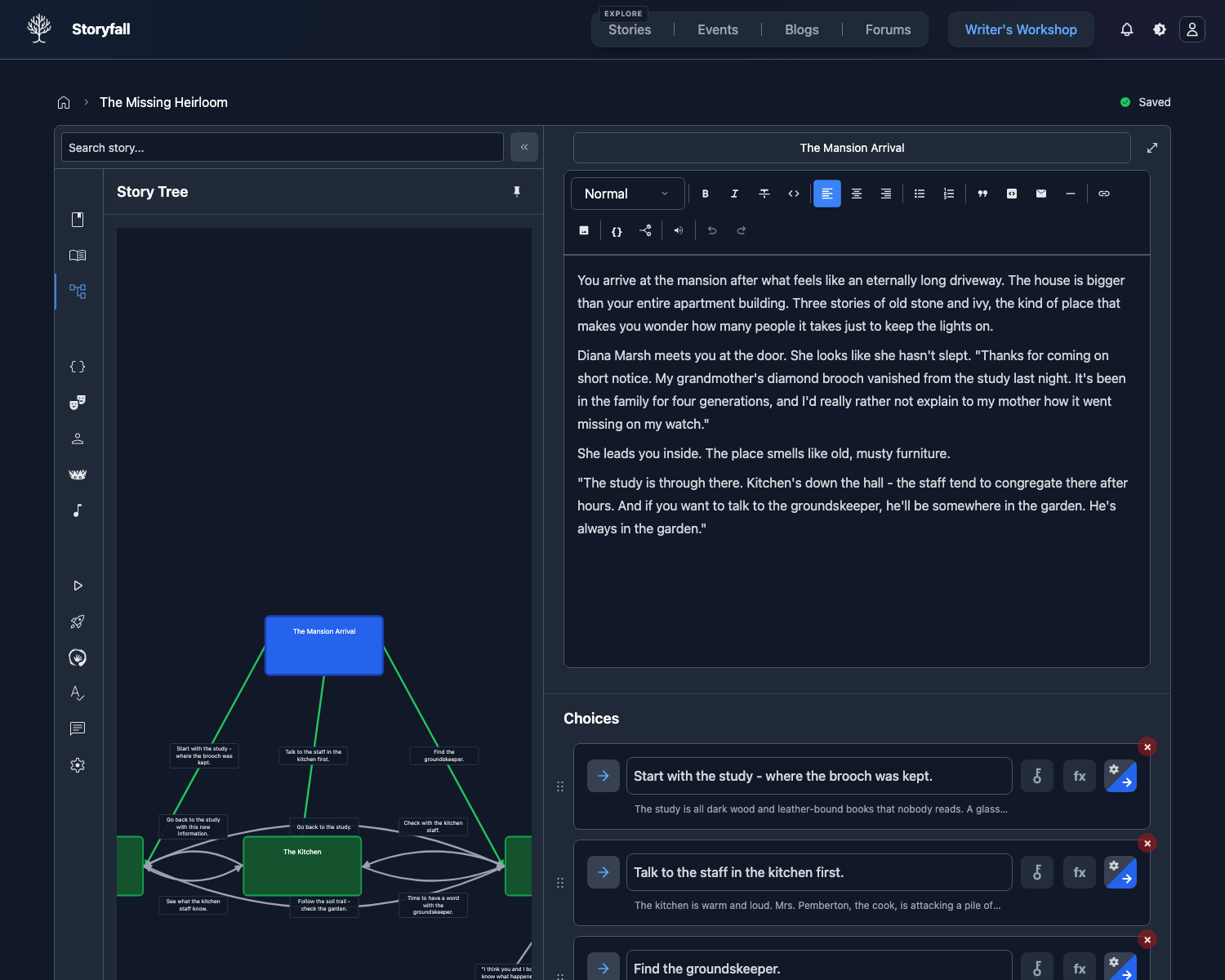
The Story Tree shows your entire story structure as a graph. Scenes are nodes, choices are connecting lines, and you can see the full shape of your branching narrative at once.
Accessing the Story Tree
Open your story in the Workshop editor and click the Story Tree button in the sidebar.
Mobile Pinch View
On phones and tablets, you can pinch with two fingers anywhere in the editor to zoom out from the current scene into the Story Tree. The tree opens centered on that scene. Once the tree is open, pinch again to zoom farther out, drag to pan, or tap any scene node to return to editing that scene.
This works in mobile and tablet web, and in the iOS and Android apps. The sidebar Story Tree button is still available if you prefer opening it directly.
Pinning the Tree
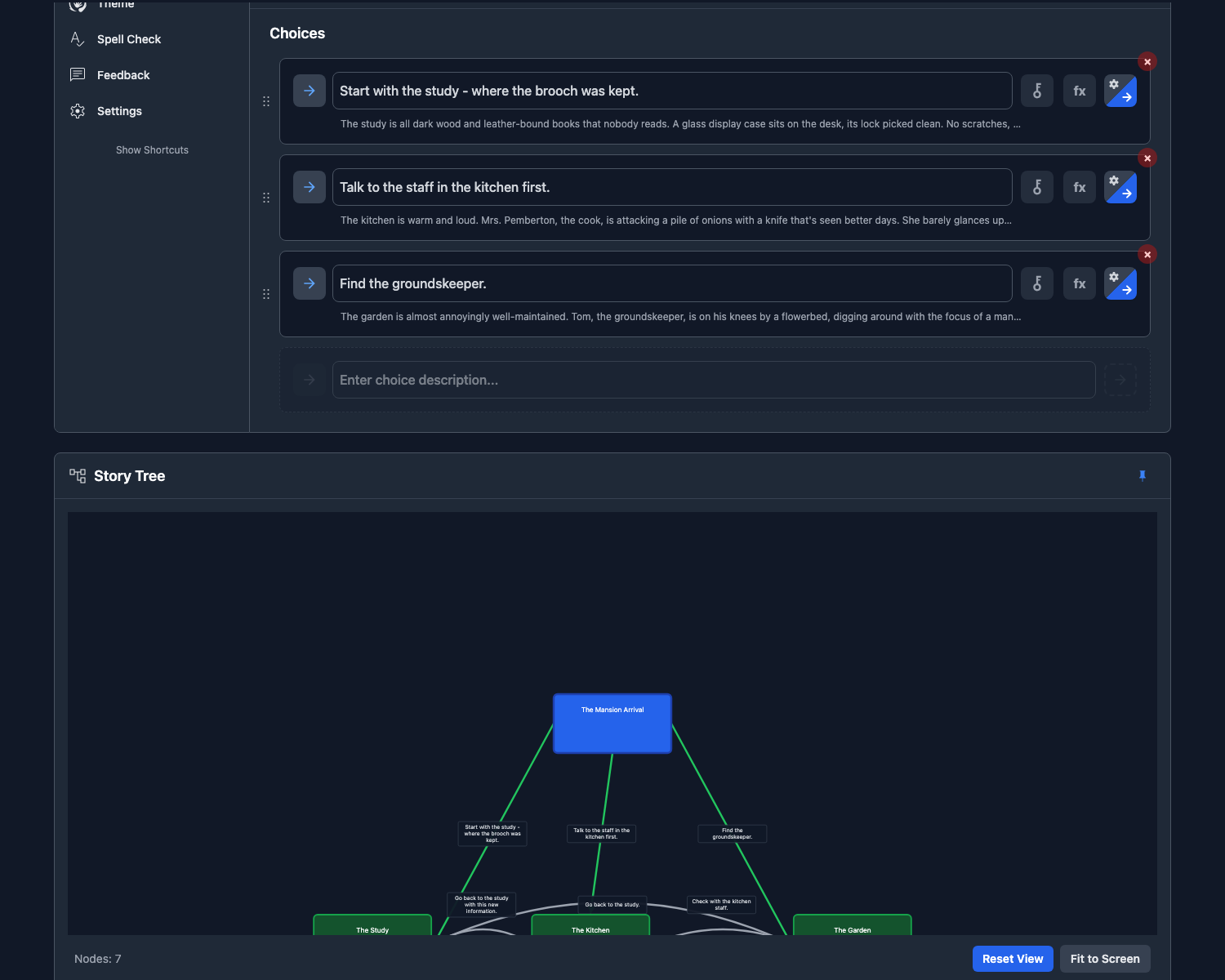
You can pin the story tree to keep it visible below the editor while you work. When pinned, the tree expands to a full-width section underneath your scenes, so you can see your story structure at a glance while editing. Click the pin button to toggle it on or off.
Reading the Visualization
Nodes
Each node represents a scene in your story. Nodes display the scene name and are color-coded by chapter so you can quickly identify which part of the story they belong to.
Edges
Lines connecting nodes represent choices. Each line shows the path a reader can take from one scene to another. The direction of the arrows indicates the flow of the narrative.
Back Edges
When a choice loops back to a previously visited scene (creating a cycle in the story), the connecting line is drawn in orange. These back edges help you identify loops in your narrative, such as hub scenes that readers return to repeatedly.
Starting Scene
The starting scene is highlighted so you can find where your story begins.
Navigation
Pan and Zoom
- Scroll to zoom in and out.
- Pinch on mobile to open the tree from the editor. Once it opens, pinch again to zoom in and out.
- Click and drag on the background to pan around the tree.
- Use the zoom controls to reset the view.
Clicking Nodes
Click on any node to select that scene in the editor and highlight its connections.
What the Tree Reveals
The tree helps you spot:
Dead Ends
Scenes with no outgoing connections (no choices leading away from them) that aren’t intentional endings. These are easy to spot in the tree as leaf nodes without arrows leaving them.
Complex Branching
Areas where your story has many branches can become visually dense. If a section of the tree looks overwhelming, it might be a sign that you should simplify or add convergence points.
Convergence Points
Scenes where multiple paths merge back together. These appear as nodes with many incoming connections.
Chapter Color Coding
Each chapter is assigned a distinct color. Scenes in the same chapter share the same color, so you can see chapter boundaries in the graph.
Effect and Condition Annotations
Effect and condition annotations are shown by default. When enabled:
- Choice effects appear below the choice text in compact form (e.g.,
health +5,gold = 50,Discover sword). Positive changes are green, negative are red, and set/discover operations are blue. Conditional effects include the condition (e.g.,IF speech > 10: health +5). - Choice conditions appear prefixed with “IF” in amber (e.g.,
IF speech > 10). - Scene entry effects are listed below the scene node with a purple “On Enter:” header, showing each effect inline. Hover over them for the full list.
Each annotation area shows up to 3 lines. If there are more, a “+N more” indicator appears.
Click Hide Effects to hide annotations, or Show Effects to bring them back.
Character Filtering
If your story has multiple characters, you can filter the tree to show only scenes and choices accessible to a specific character. This helps you visualize each character’s path through the story independently.
Next Steps
- QA Panel - Automatically detect structural issues in your story.
- Editor - Organize your story’s scenes and chapters.
- Spell Check - Polish your text before publishing.
- Publishing Your Story - Share your story with readers.