Importing Stories
Import existing stories from other formats into Storyfall, letting you continue working on projects you’ve started elsewhere or migrate content from other platforms.
Supported Formats
Storyfall supports importing from three formats:
| Format | File Type | Variables | Conditions | Structure | Status |
|---|---|---|---|---|---|
| Ink | .ink, .json | Yes | Yes | Knots and stitches to scenes. | Beta |
| Twine 2 | .html, .twee, .tw | Partial | Partial | Passages to scenes. | Beta |
| Storyfall | .json | Yes | Yes | Complete backup. | Stable |
How to Import
- Go to your Workshop.
- Click the Import tab.
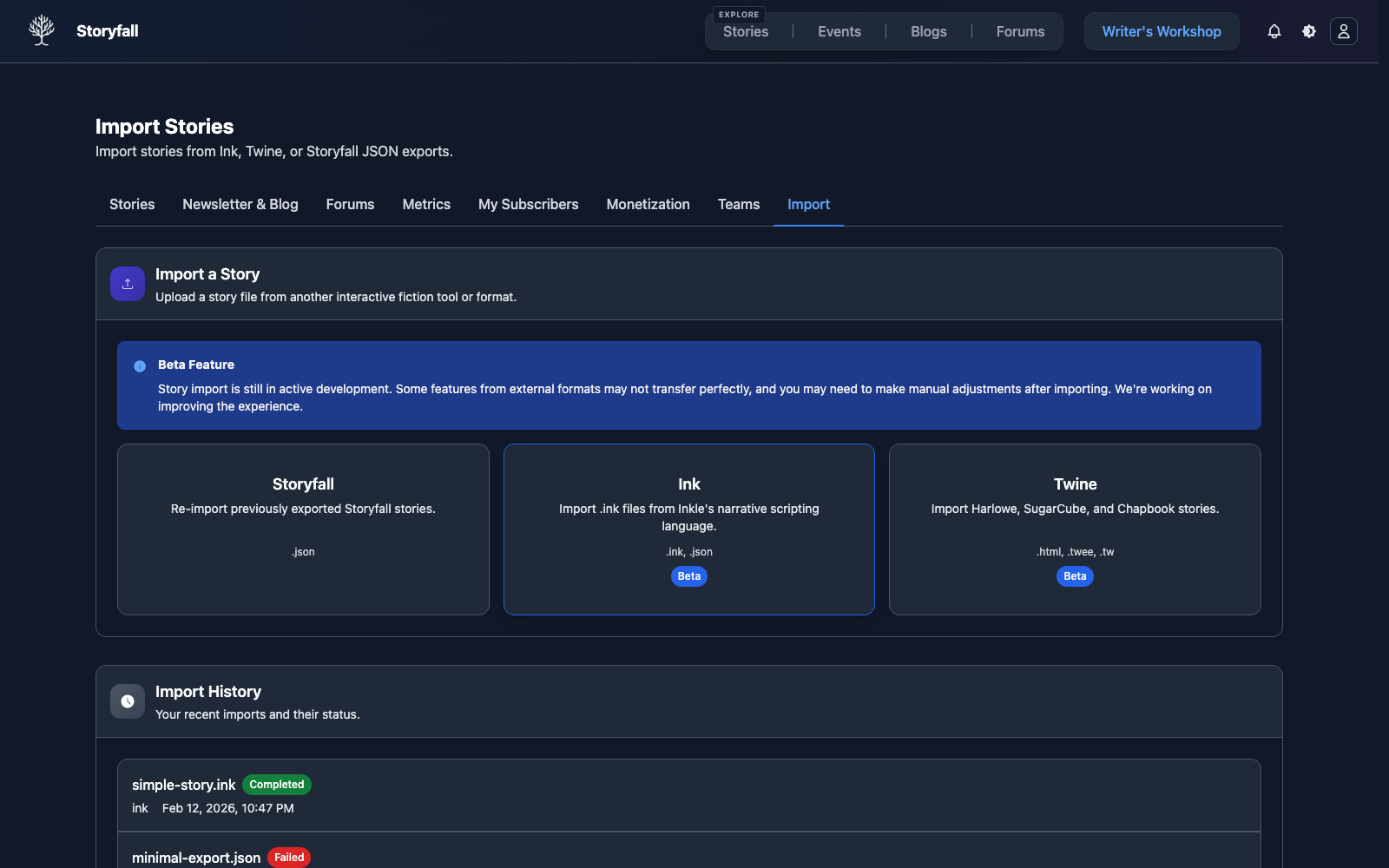
- Select a format (Storyfall, Ink, or Twine).
- Drag and drop your file or click to browse.
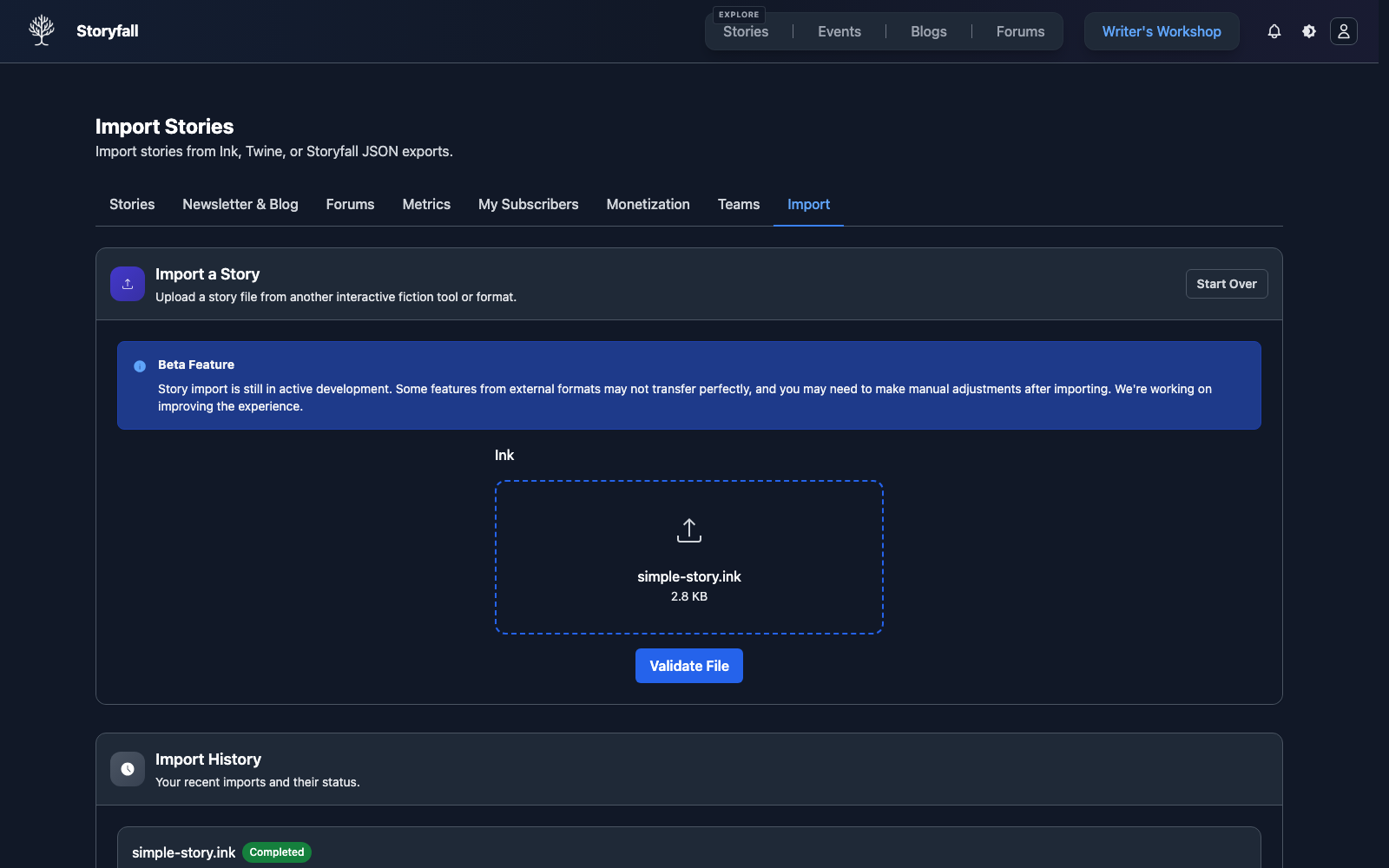
- Click “Validate File”.
- Review the preview (detected title, scene/choice/variable counts, and any warnings).
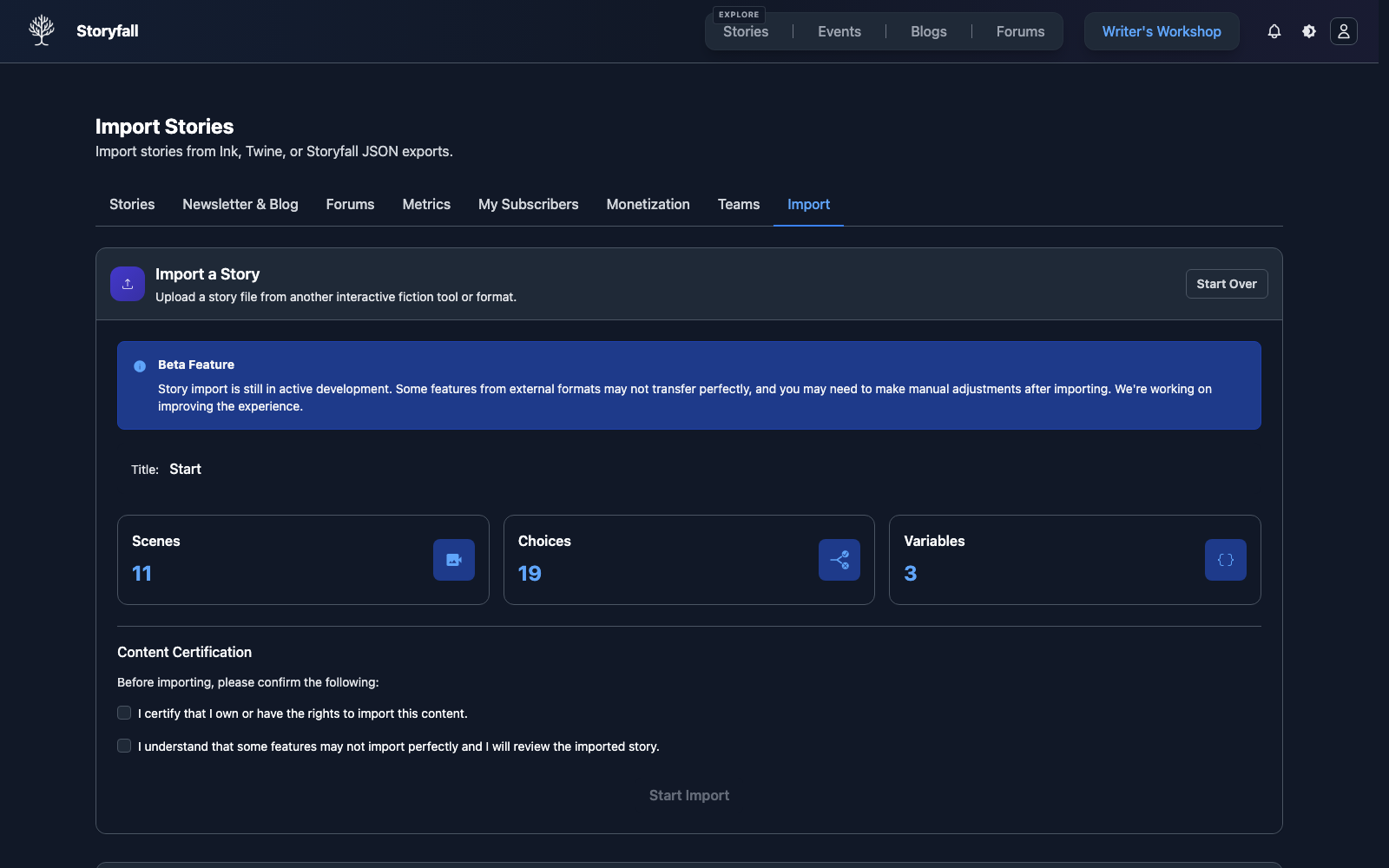
- Check the content certification boxes.
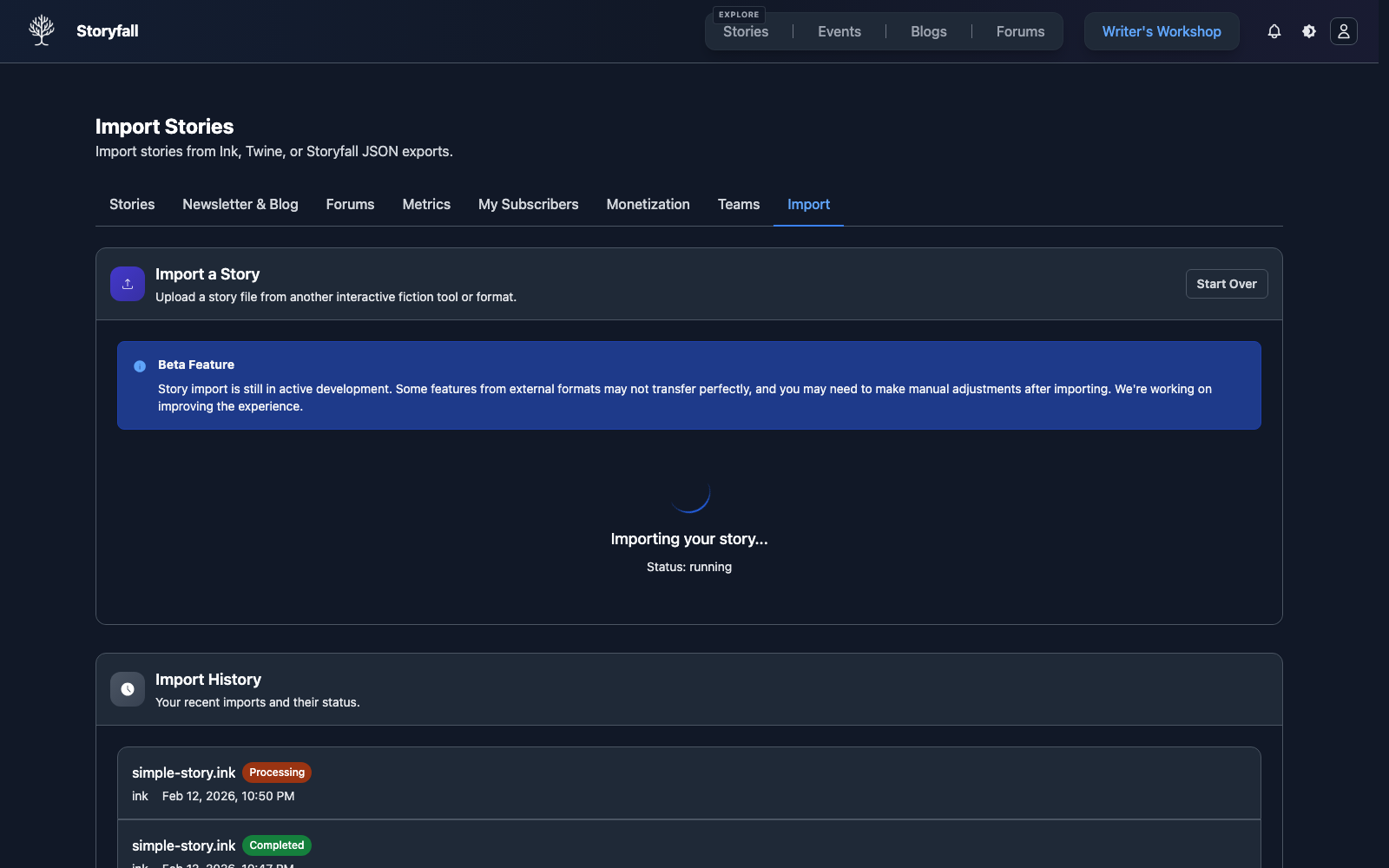
- Click “Start Import”.
What Gets Imported
Every import brings in the core structure of your story:
- Scenes with their full text content.
- Choices linking scenes together.
- Basic branching structure preserved from the original.
Variables and conditions are imported where the source format supports them. Some advanced or format-specific features may not transfer perfectly, so review your imported story in the editor.
Format-Specific Notes
Ink (.ink or .json) - Beta
Ink is a scripting language for interactive narrative. Ink import is currently in beta. Storyfall provides decent support for Ink imports:
- Knots and stitches are converted to scenes.
- Choices are preserved with their text and destinations.
- Variables are imported and mapped to Storyfall variables.
- Conditional logic is converted to Storyfall conditions where possible.
- Diverts become choice links between scenes.
Ink files can be uploaded as .ink or as compiled .json exports.
Twine 2 (.html, .twee, or .tw) - Beta
Twine 2 import is currently in beta. Twine 2 stories can be exported as .html, .twee, or .tw files. Storyfall supports the major Twine story formats:
- Harlowe format.
- SugarCube format.
- Chapbook format.
Each passage in your Twine story becomes a scene in Storyfall. Hyperlinks between passages are converted into choices. Twine macros and format-specific scripting may not transfer and will appear as warnings during import.
Storyfall JSON (.json)
The Storyfall JSON format is a complete story backup. Everything is preserved:
- All scenes, choices, and chapters.
- Variables, conditions, and effects.
- NPCs, factions, and achievements.
- Achievement images, points, secret status, and award effects.
- Story settings and metadata.
This format is ideal for transferring stories between Storyfall accounts or restoring from a backup. If the exported JSON includes translations, those are imported automatically alongside the story content.
Handling Warnings
During import, you may see warnings about features that couldn’t be fully converted. These warnings don’t prevent the import. Your story will still be created, but you should review it in the editor to make sure everything reads correctly and fix any issues.
Next Steps
- Creating Your First Story - Learn the basics of the Storyfall editor.
- Editor - Organize your imported story.
- HTML Export - Export your story as a standalone HTML file.
- Publishing Your Story - Share your imported story with readers.