Spell Check
Storyfall has a built-in spell checker with two modes: inline spell check that underlines misspelled words as you type, and a Spell Check panel that scans your entire story at once.
Enabling Spell Check
Storyfall spell check is disabled by default for new stories. This is intentional - when Storyfall spell check is off, your browser’s native spellchecker stays active, so you can use your own personalized dictionaries and language preferences.
To enable Storyfall spell check:
- Open the Review panel in the sidebar (click the Review tab or press Ctrl+Shift+S).
- Select the Spell Check tab.
- Toggle the Enabled switch on.
- The setting is saved per-story and persists across sessions.
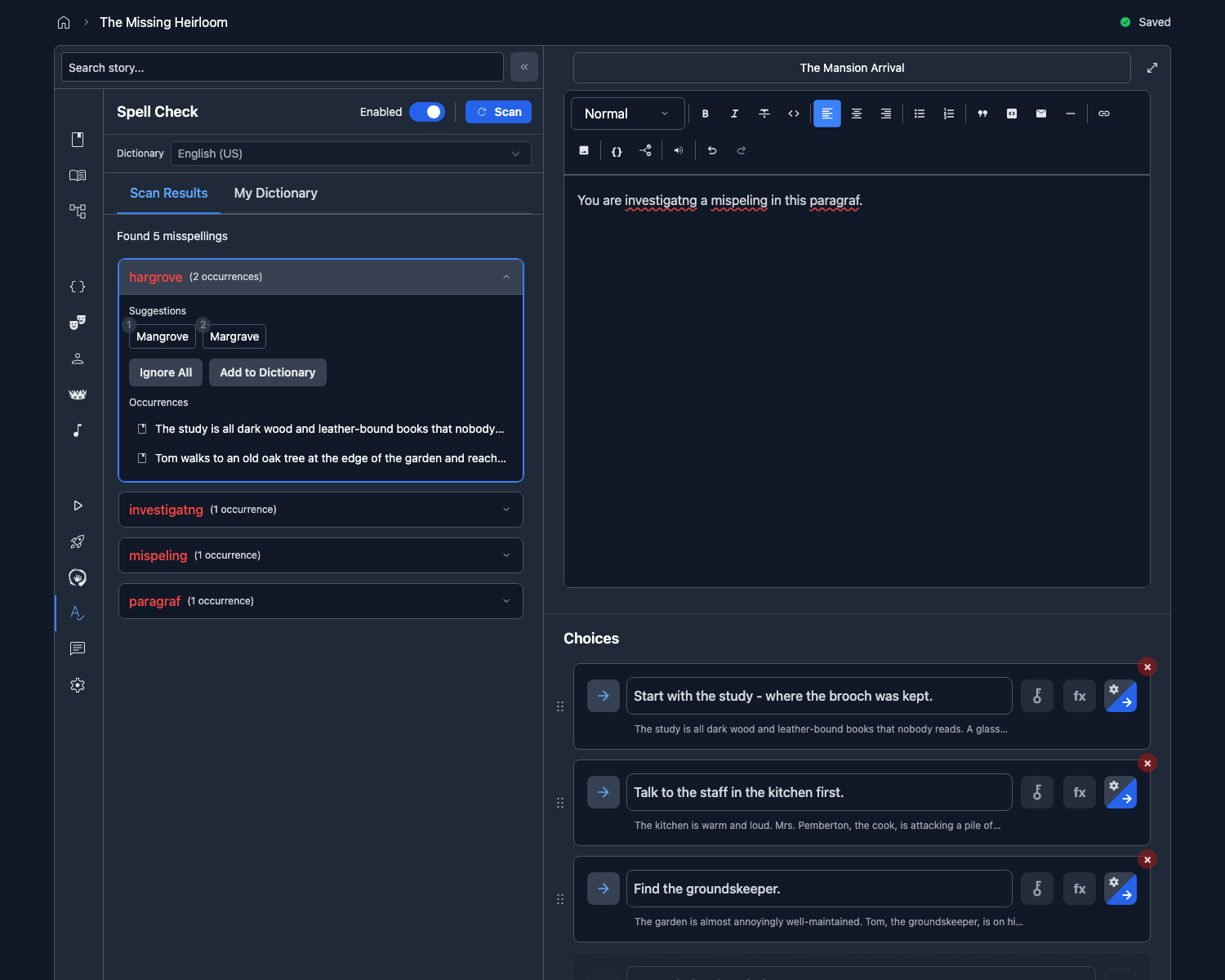
When Storyfall spell check is turned on, the browser’s native spellchecker is automatically disabled to prevent double underlines on the same word.
Inline Spell Check
Once enabled, inline spell check works automatically as you type in both scene and choice editors.
How It Works
- As you type, the spell checker runs after a short delay (750ms) to avoid interrupting your flow.
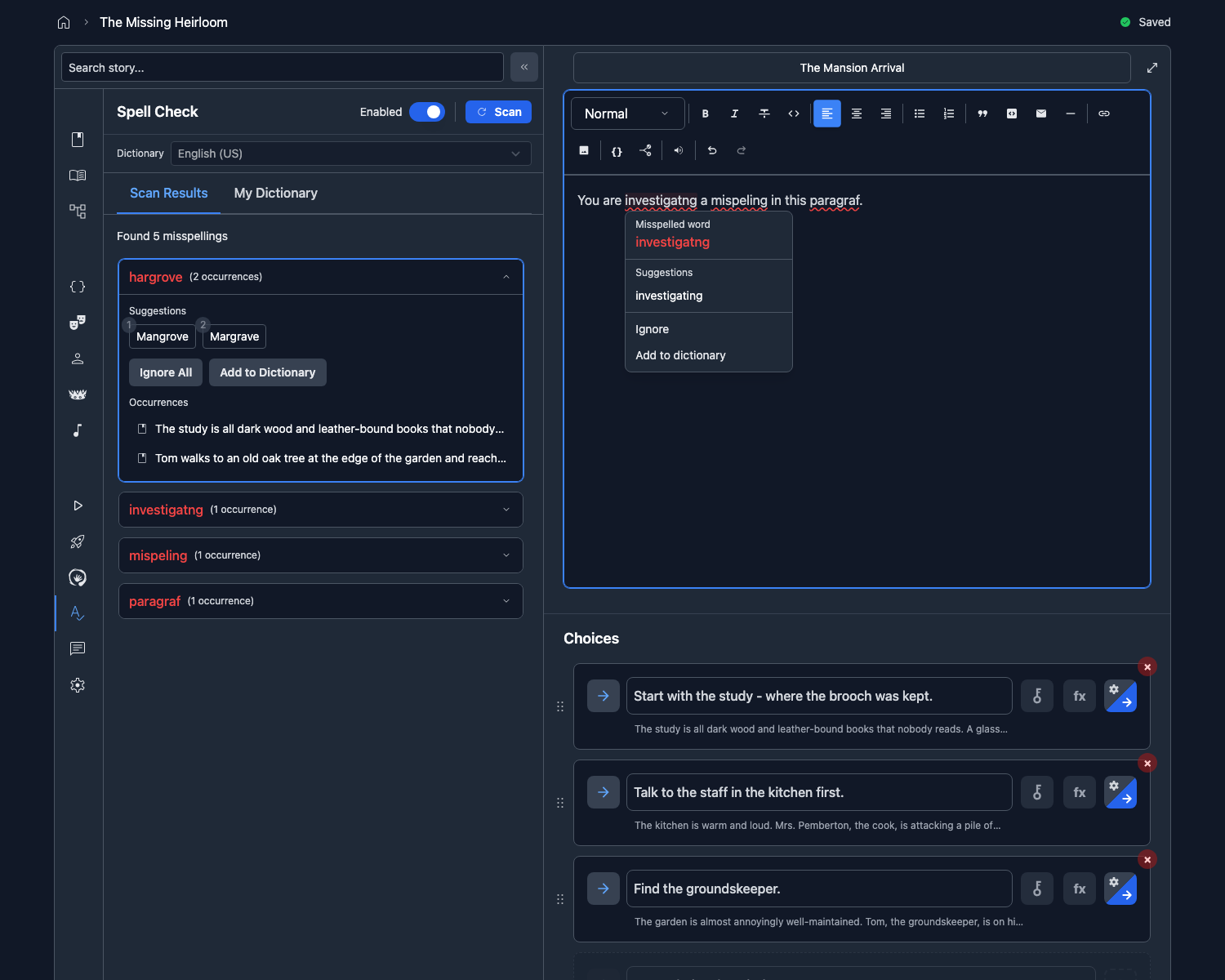
- Misspelled words appear with a red underline.
- Click on any underlined word to see a popup with spelling suggestions.
- Click a suggestion to replace the misspelled word.
You can fix typos as you go without leaving the editor.
Spell Check Panel
The Spell Check panel lets you scan your entire story at once and fix all spelling errors in bulk.
Using the Panel
- Open the Review panel and select the Spell Check tab.
- Click the Scan button to check all scenes and choices.
- Results are grouped by word, with an occurrence count showing how many times each misspelling appears.
- Click on any occurrence to navigate directly to that scene in the editor.
- Click a suggestion to fix the word and then scan again to confirm the word is removed from results.
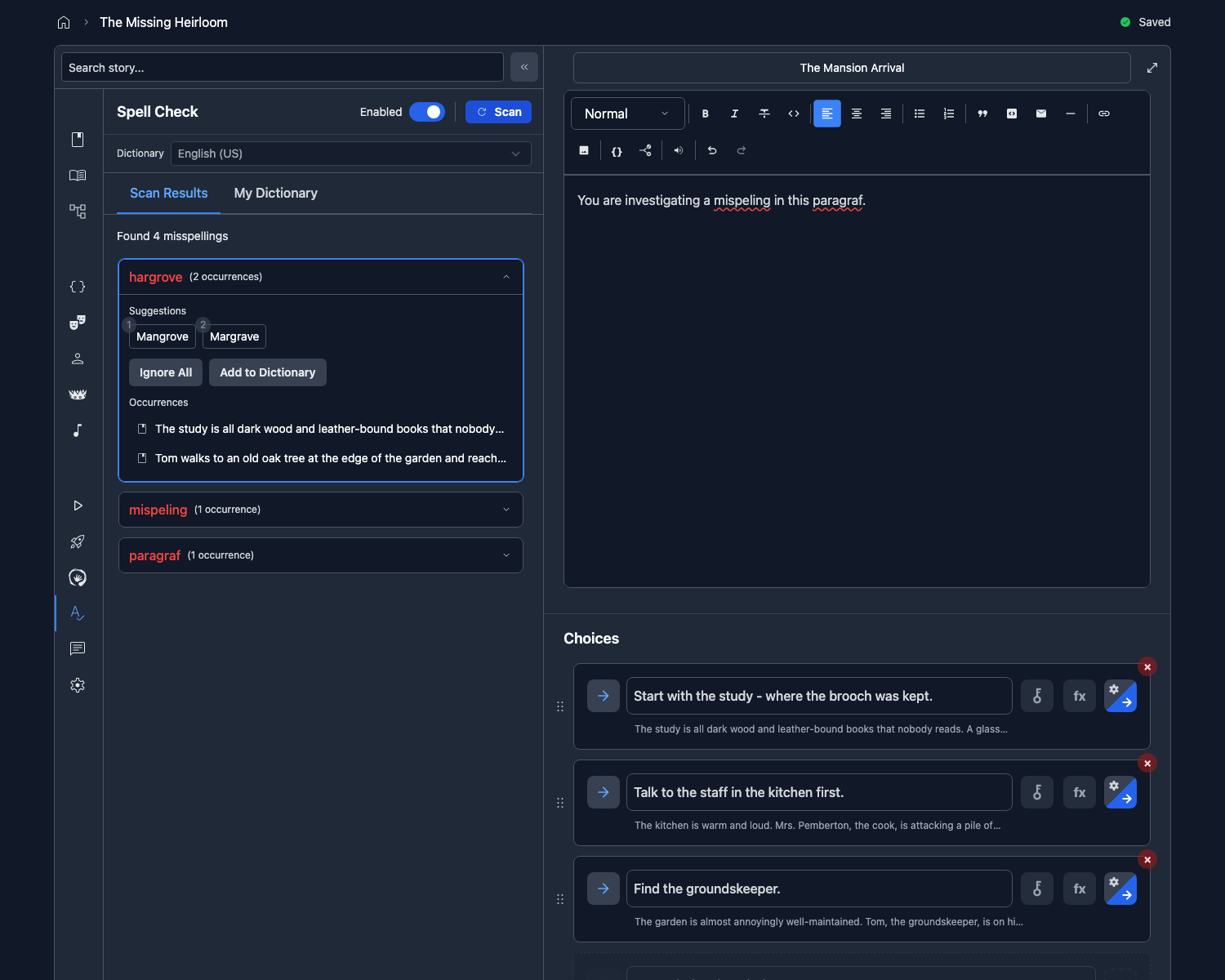
The panel is good for catching errors across a large story, especially repeated misspellings.
Custom Dictionary
When the spell checker flags a word that’s spelled correctly (character names, invented terms, slang), you have two options:
Ignore All
Click “Ignore All” to dismiss a word for the rest of your current editing session. The word will stop being flagged, but only until you close or refresh the editor.
Add to Dictionary
Click “Add to Dictionary” to permanently add a word to your personal dictionary. The word will never be flagged again in any of your stories.
Next Steps
- Story Tree - Visualize your story’s branching structure.
- Editor - Learn more about organizing scenes and chapters.
- Publishing Your Story - Share your polished story with readers.