Publishing Your Story
Publishing makes your story available to readers on Storyfall. Each publish creates a versioned snapshot of your draft, runs validation and content moderation, and produces a public URL at storyfall.com/s/your-story. You can publish a finished story or release it as early access while you keep writing.
Publishing Steps
- Click “Publish” in your workshop.
- Enter a version number (e.g. 1.0).
- Add a changelog describing what’s included. This is optional for your first publish but required for updates.
- Click “Start Validation”. The system checks your story for issues and runs content moderation on any images.
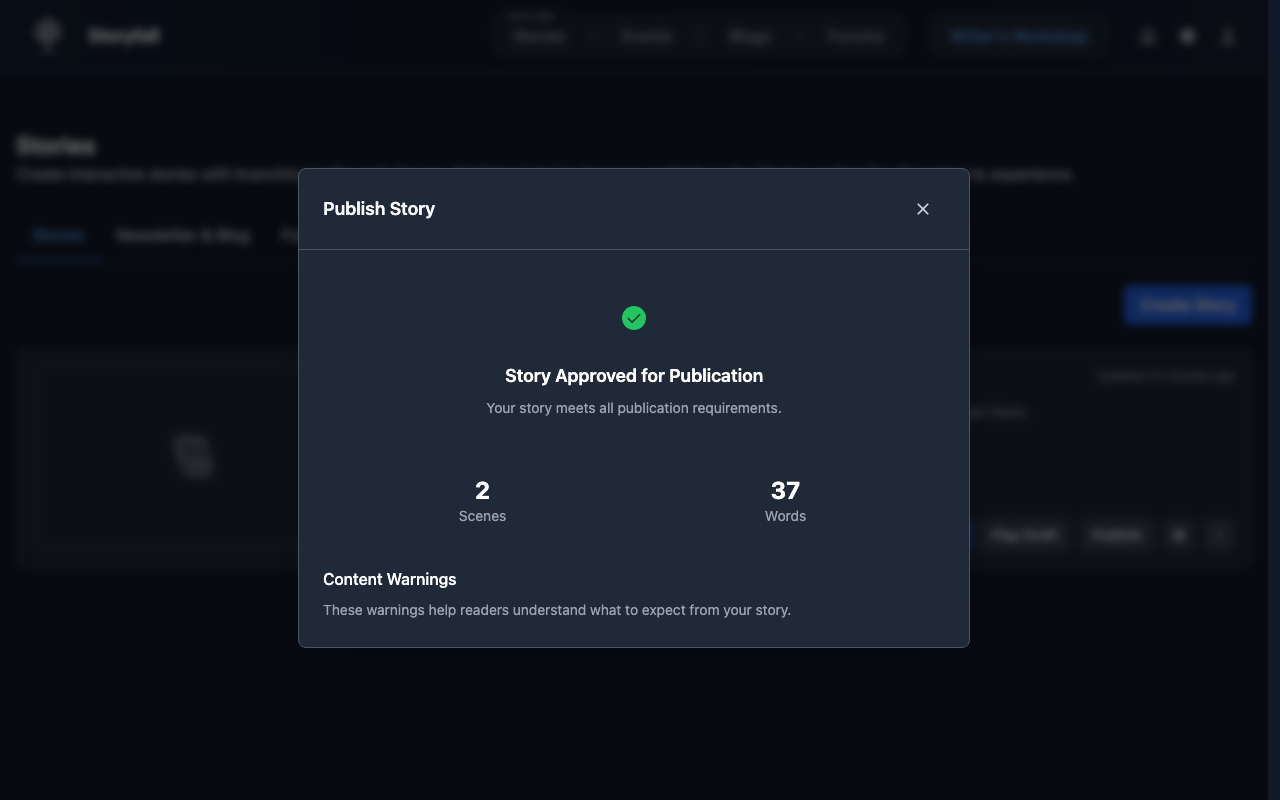
- If validation passes, click “Publish Story”.
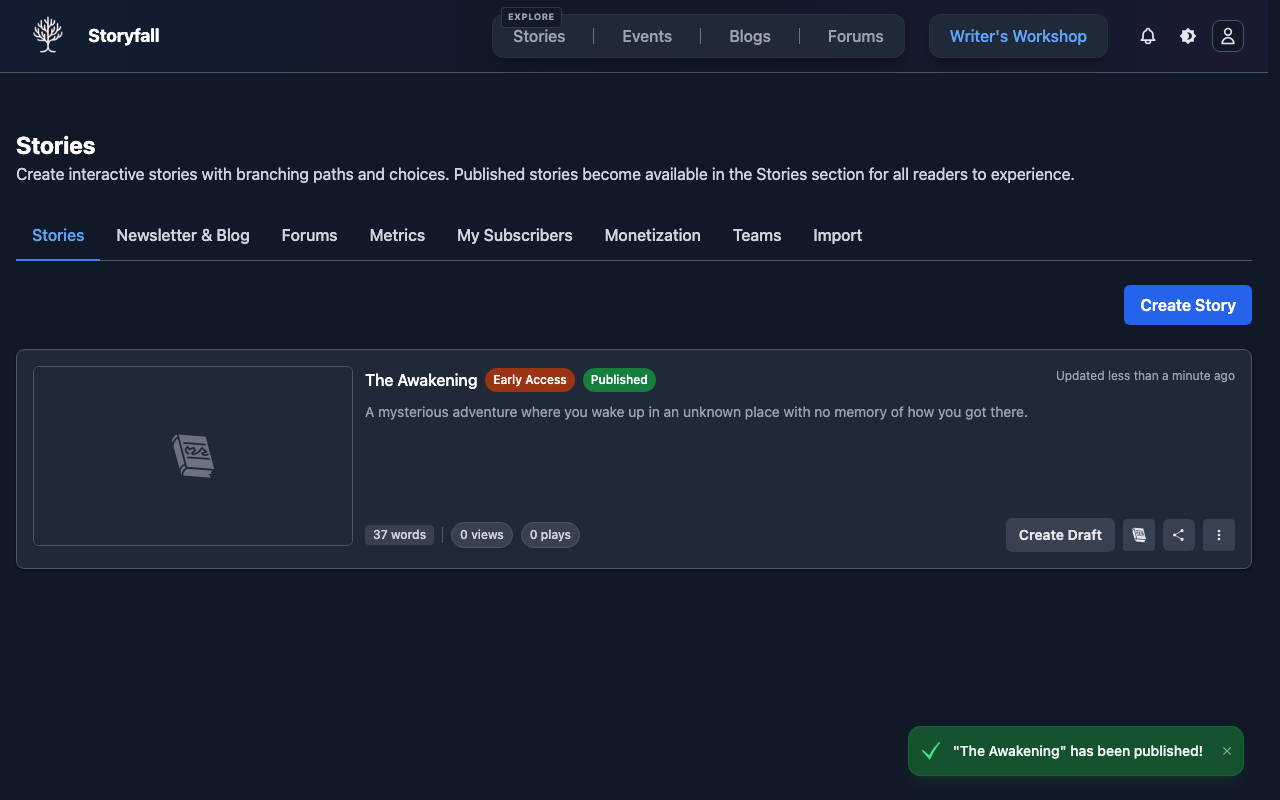
Your story is now live and available to readers.
Early Access
You can publish your story as early access if it’s not finished yet. Early access bypasses the 10-scene minimum requirement (only 2 scenes are needed) and lets readers start playing what’s available. Early access stories can’t be monetized.
Content Warnings
During validation, content warnings are automatically detected based on your story’s text. You can also add your own custom content warnings. Readers see these before starting your story.
Updating Published Stories
Storyfall uses versions to manage updates. When you edit a published story, your changes go into a draft version that doesn’t affect what readers currently see.
To publish an update:
- Click “Create Draft” in your workshop to start a new draft version.
- Test changes using Play Draft in the sidebar.
- Click “Publish” again.
- Set a new version number higher than the previous one.
- Add a changelog describing what changed.
- Validate and publish.
Backups
Backups are private recovery snapshots of your draft. They are separate from published versions, do not appear to readers, and cannot be played or published directly.
Storyfall creates a nightly backup when your draft has changed since the last backup. You can also open Settings > Backups and click Create Backup to make a manual backup. Manual backups are limited to one per story every 24 hours.
To restore a backup:
- Open Settings > Backups.
- Find the backup by timestamp and type.
- Click Restore.
- Confirm the restore.
Before the restore replaces your current draft, Storyfall saves a backup of that draft first. Backups are kept for 30 days.
Restores are limited to five per story in a rolling 24-hour period. The Backups panel shows how many restores have been used and when another restore will be available.
Unpublishing
If you need to take a story down:
- Click the archive option on your story card in the workshop.
- Confirm the action.
Current playthroughs will continue uninterrupted, but the story is removed from discovery and new players can’t start it. You can republish an archived story at any time by creating a new draft and publishing it.
Analytics
Your workshop dashboard shows stats for your published stories:
- Total plays.
- Average rating.
- Published stories count.
- Total revenue (if monetized).
Translations Across Versions
Translations are preserved when you publish a new version. All translated content (scenes, choices, chapters, entity names, and story metadata) is copied to the new version alongside the main story content. If you add new scenes in a draft, they will need to be translated separately.
Next Steps
- Languages & Translations - Add translations to reach a wider audience.
- Monetization - Earn from your stories.
- Events - Submit your story to writing competitions.
- Forums - Build community around your work.
- Blog Posts - Engage with your audience.