Tutorials
Explore pre-built tutorial stories in specific genres to learn how Storyfall works. Each tutorial is a complete, playable story you can open in the editor, examine, and experiment with.
Note: Tutorial stories are for learning only and cannot be published. You can play them as drafts and edit them freely, but to publish your own work, create a new story from scratch.
Available Tutorials
| Genre | Story Title | Highlights |
|---|---|---|
| Mystery | The Missing Heirloom | Suspects, clues, multiple endings |
| Adventure | The Lost Temple | Inventory system, NPCs, branching paths |
| Romance | The Party | Relationship tracking and social choices |
| Horror | The Abandoned Manor | Sanity system and high-tension outcomes |
| RPG/Fantasy | The Dragon’s Quest | Health, gold, factions, combat vs diplomacy |
Each tutorial includes 6-8 pre-written scenes complete with variables, conditions, effects, and NPCs to demonstrate how these features work together.
Creating a Tutorial
- Sign in and go to Workshop.
- Click the dropdown arrow next to Create Story.
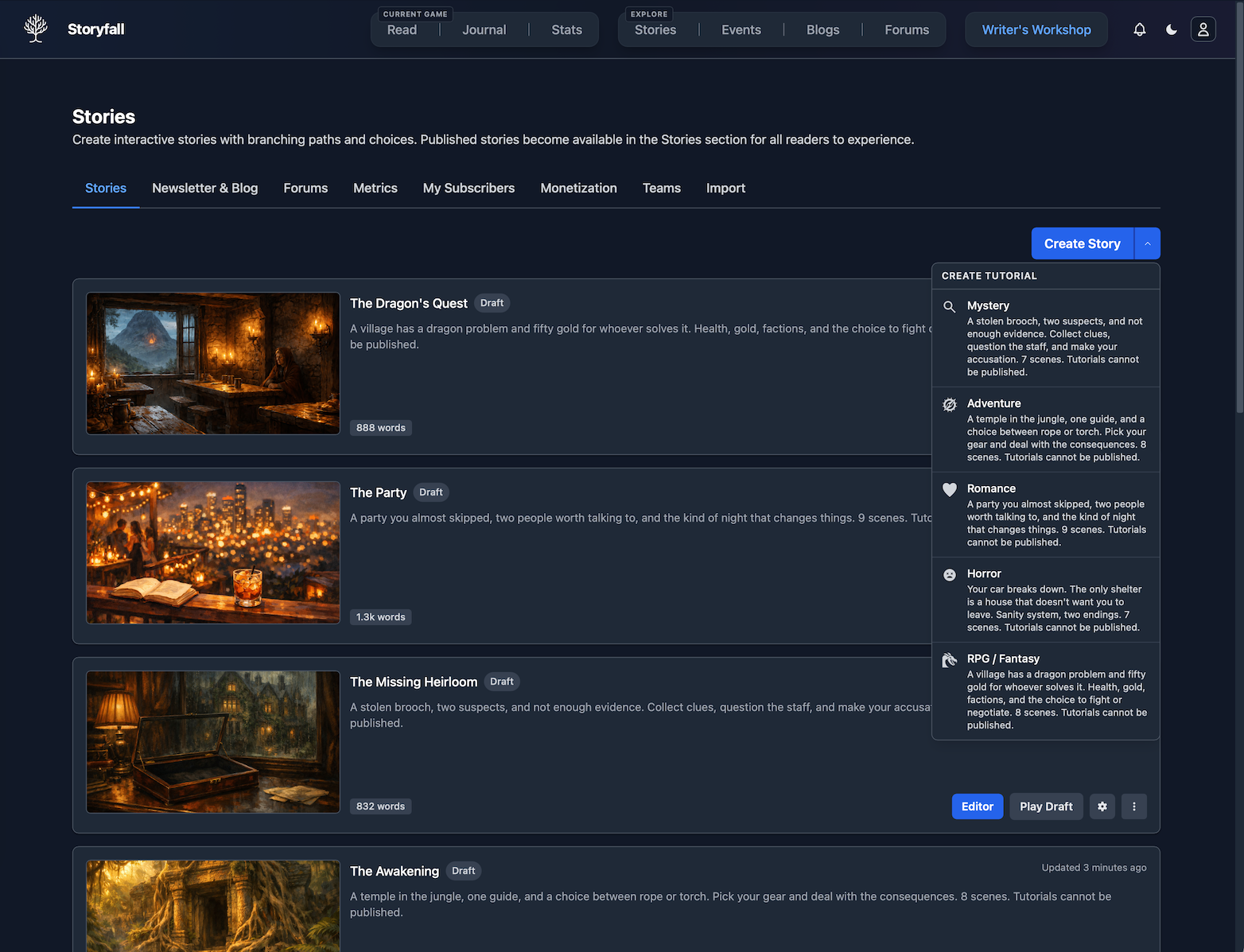
- Choose a tutorial from the Create Tutorial menu.
- Storyfall creates the tutorial story and opens it directly in the editor.
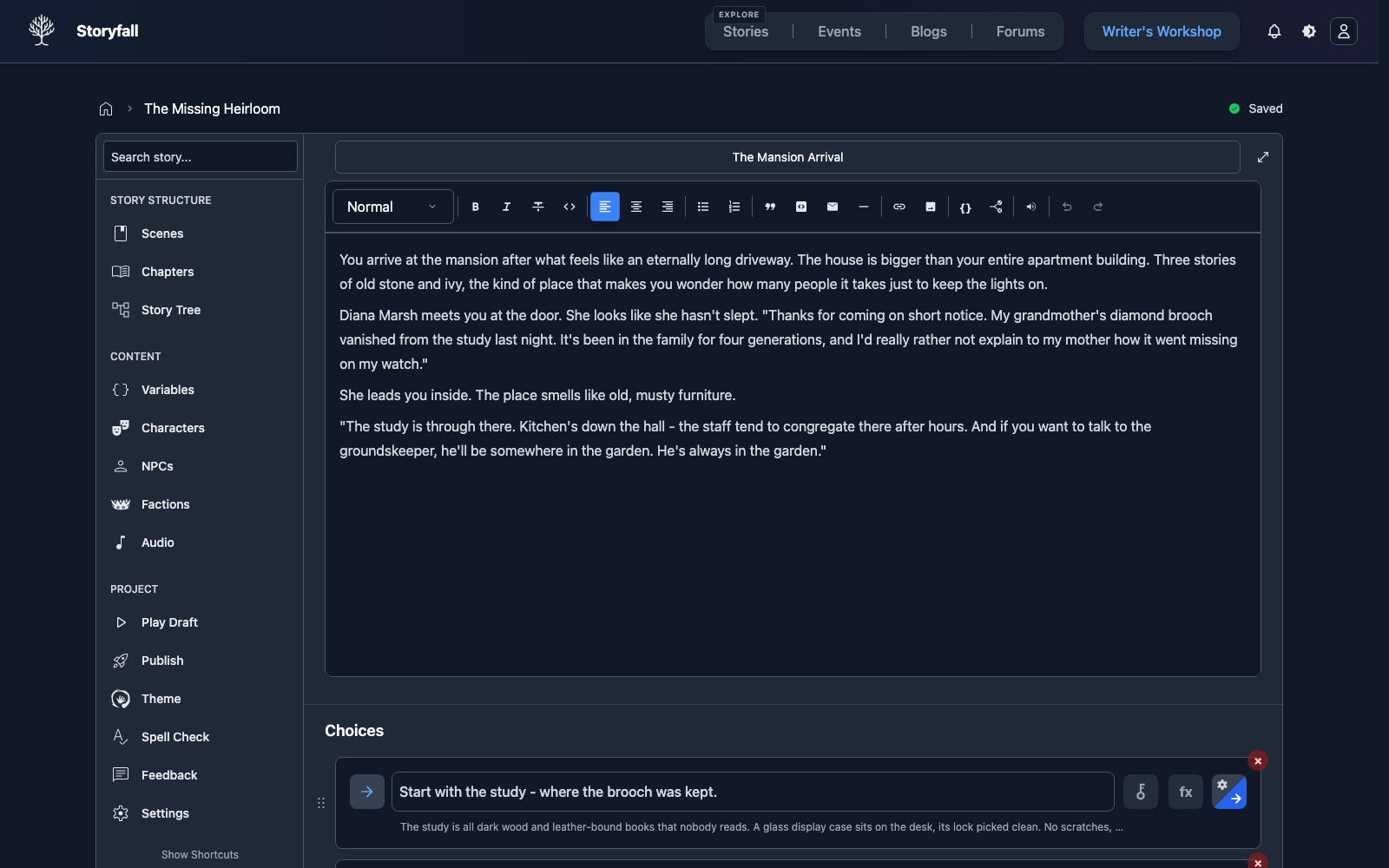
Tutorial stories are independent copies, so your edits never affect the original.
What Tutorials Include
Every tutorial comes with a working set of Storyfall features:
- Scenes with polished narrative text and branching paths.
- Variables tracking stats, inventory, flags, and progression.
- NPCs with names, descriptions, and sentiment values.
- Conditions that gate choices based on variable values.
- Effects that modify variables when readers make choices.
Learning from Tutorials
Tutorials are a good way to learn how Storyfall features work in practice:
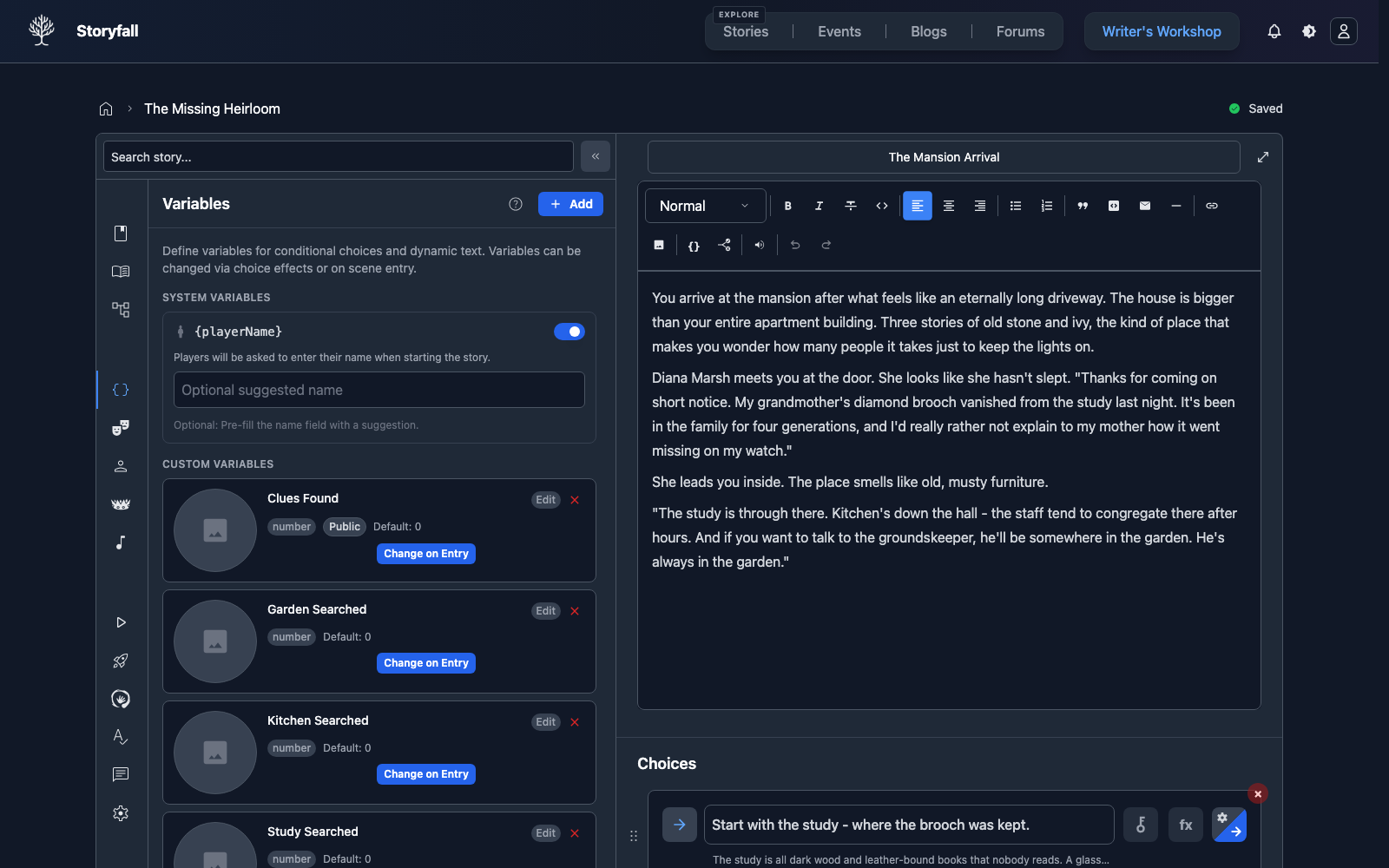
Examine the Variables Panel
Open the variables panel in the editor to see how the tutorial defines and organizes its variables. Notice the naming conventions, types, initial values, and visibility settings.
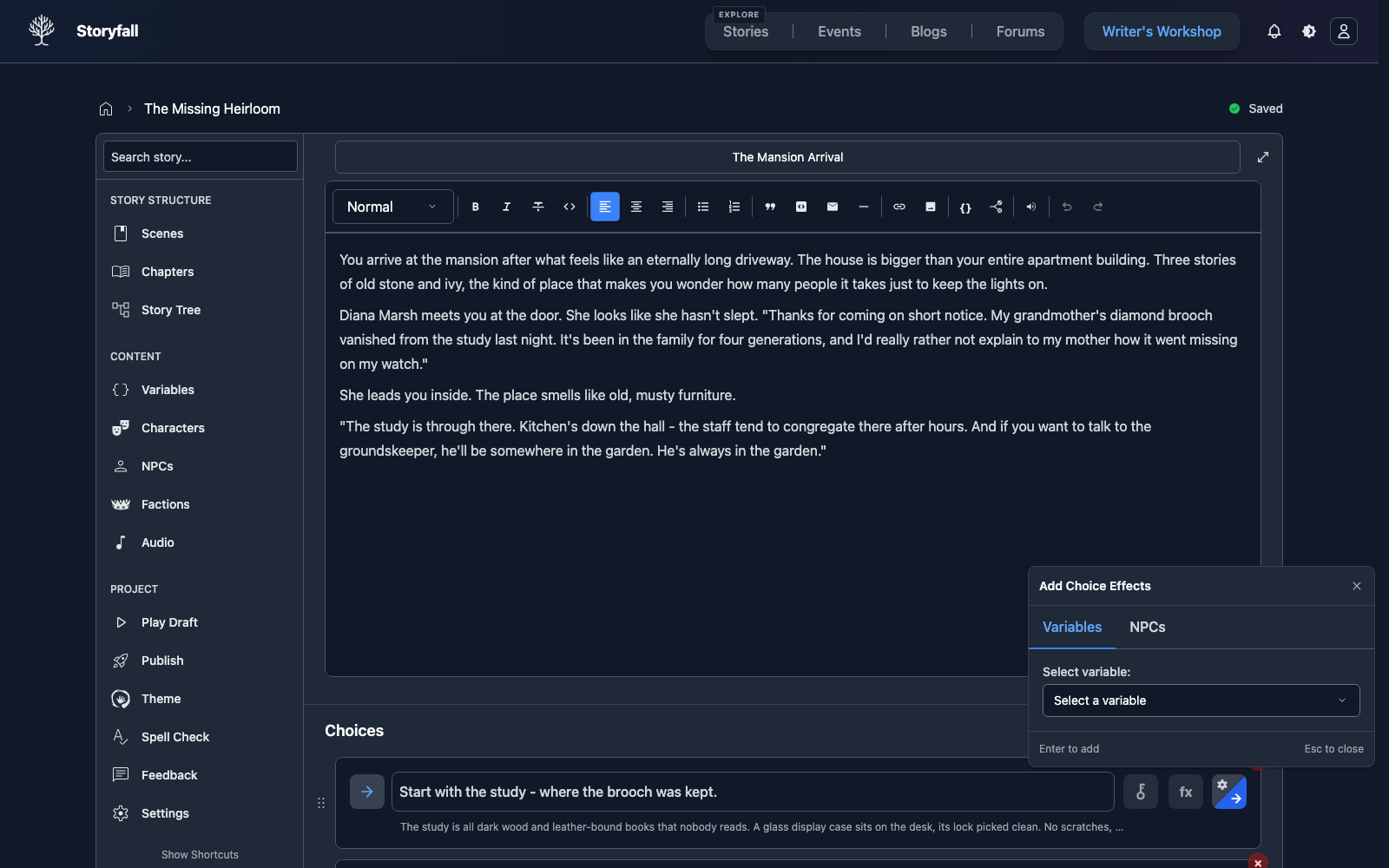
Click Choices to See Effects and Conditions
Select a choice in the scene editor, then click the fx button to inspect and edit effects. Use the key icon to inspect conditions. This shows how branching logic is wired together.
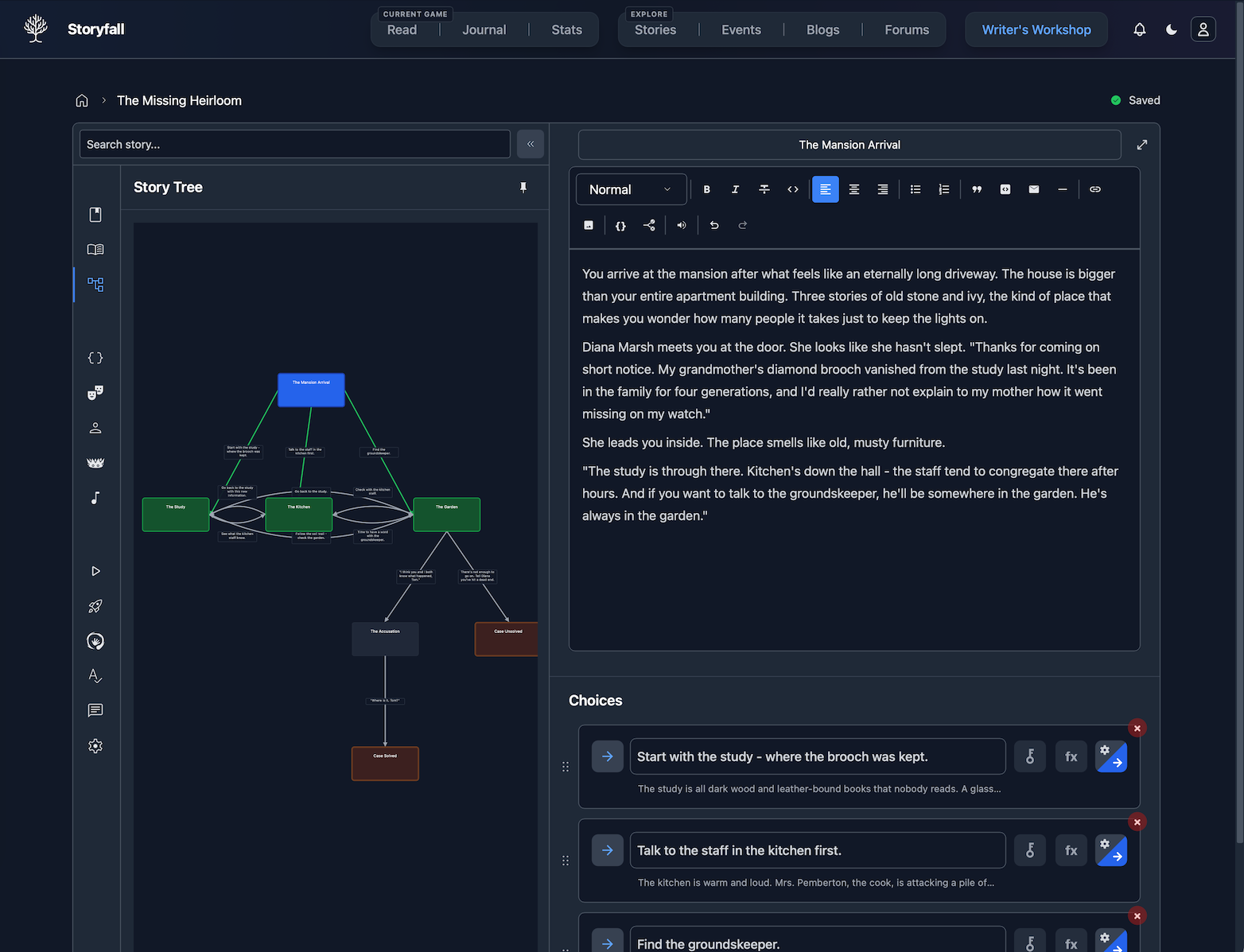
Use the Story Tree to Visualize
Open the Story Tree view to see the full branching structure of the tutorial and how scenes connect.
Play the Draft
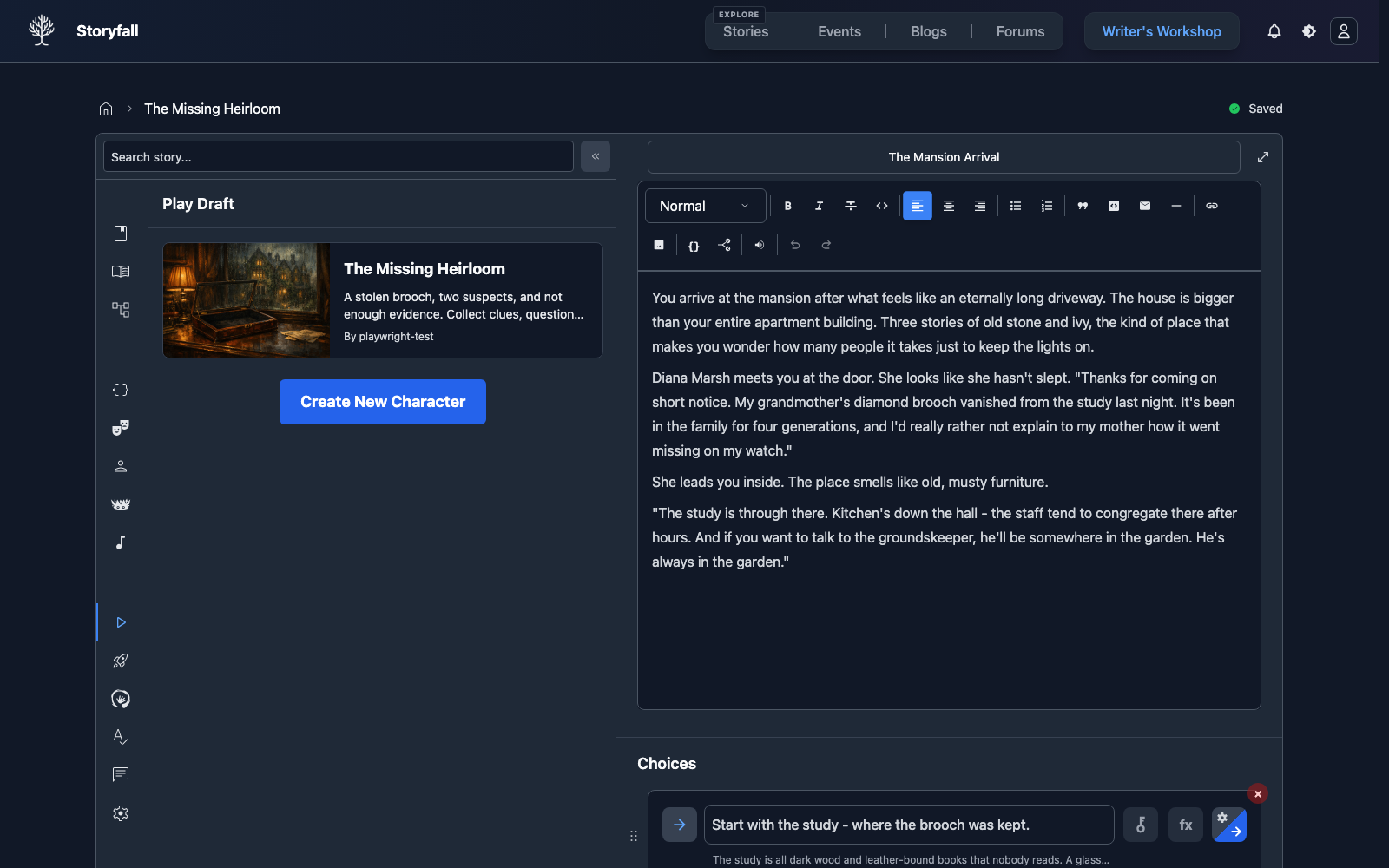
Click “Play Draft” in the sidebar to play through the tutorial as a reader would. Watch how variables change, how conditions hide or reveal choices, and how the story responds to your decisions.
Next Steps
- Creating Your First Story - Learn the basics of the editor.
- Variables & Conditions - The full variable system reference.
- Editor - Organize your story structure.
- Story Tree - Visualize your story’s branching paths.