Variables & Conditions
Variables store information during a playthrough. Conditions check those values to show or hide content. Together, they let your story react to reader choices. NPCs and factions are also a type of variable, with a relationship value you can check and modify just like any other.
What are Variables?
Variables are values that track information throughout your story. Think of them as the story’s memory - they remember things like:
- Player name.
- Player stats (health, strength, intelligence).
- Relationships (trust with NPCs, faction reputation).
- Inventory items.
- Story flags (has the player visited a location?).
- Time or progression markers.
Creating Variables
To create a variable:
- Go to your story editor.
- Click Variables in the sidebar.
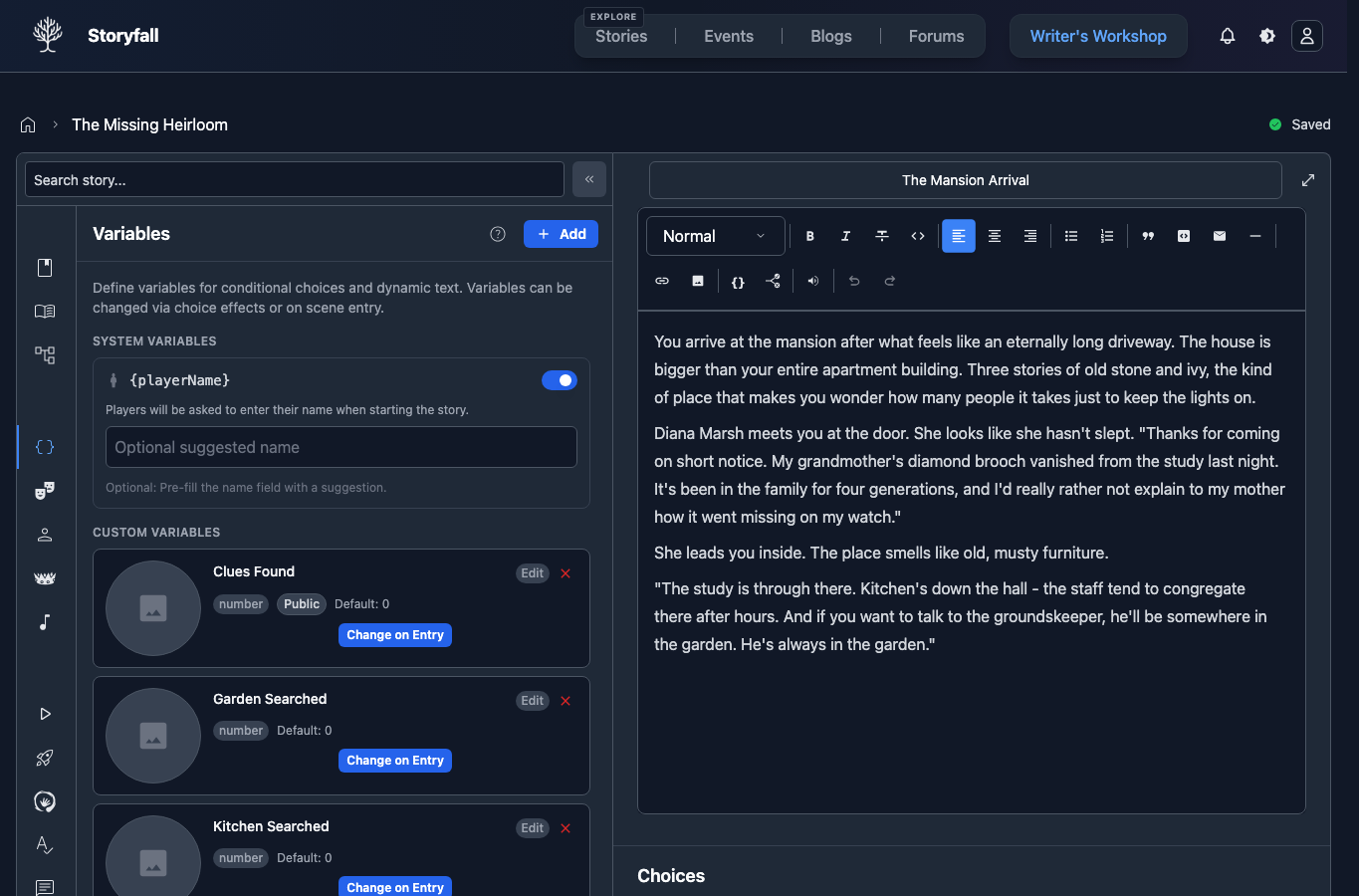
- Click “Add”.
- Configure your variable:
- Name: A unique name (e.g. “Health”).
- Type: Number, String, or Boolean.
- Initial Value: Starting value for all playthroughs.
- Visibility: Show to readers in the Stats page or keep hidden. Hidden variables can still control conditions and effects, but readers do not see change notifications for them.
- Party Variable: Share this variable across all players in co-op multiplayer.
Variable Types
Number Variables
Track numeric values like stats, currency, or counters.
health = 100
gold = 50
trust_level = 0
String Variables
Store text like names, locations, or inventory items.
player_name = "Hero"
current_location = "Village"
equipped_weapon = "Iron Sword"
Boolean Variables
Track yes/no states or flags.
met_merchant = false
has_key = true
sided_with_rebels = false
Renaming a Variable
Click any variable in the Variables panel to edit its name. When you save the new name, every reference updates with it: text badges in scenes and choices, conditions on effects and branches, and formula expressions in effect values and probabilities. Rename happens in one step. The same applies to NPCs and factions.
Using Variables in Text
Insert variables directly into your story text:
- In the scene editor, click where you want the variable.
- Type
{or click the variable button in the toolbar. - A dropdown appears showing your variables, NPCs, factions, and characters.
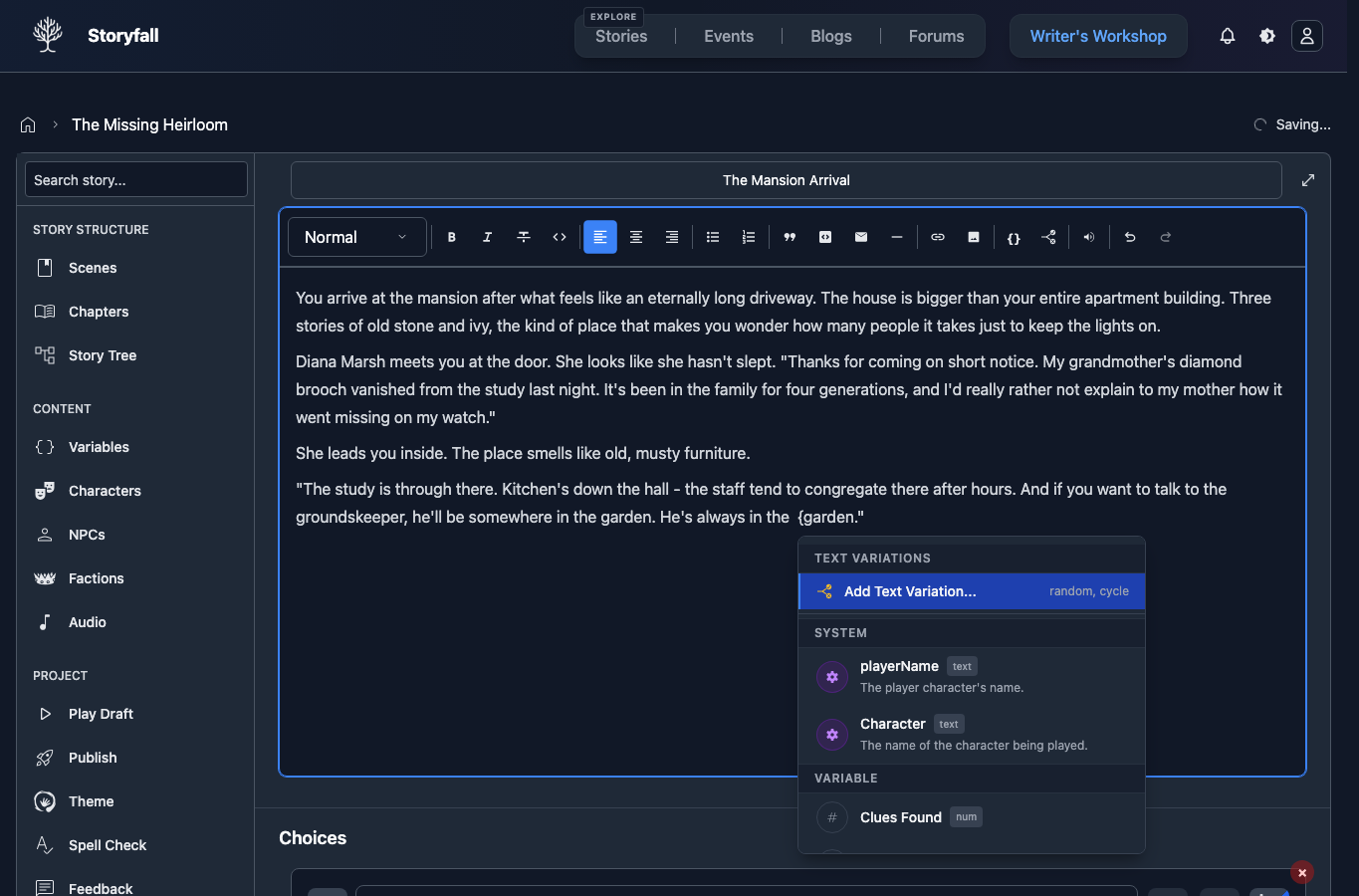
- Select the one you want to insert.
- Choose how it displays: the current value, conditional text (e.g. show different text based on a threshold), or the entity’s avatar.
- The variable will appear as a styled badge in your scene text.
Example
You have {gold} gold coins remaining.When rendered, this becomes:
You have 50 gold coins remaining.
Conditions
Conditions show or hide text based on variable values.
Creating Conditional Text
- In the scene editor, type
{or click the variable button in the toolbar. - Select a variable, NPC, faction, or character.
- Add a condition with an operator and comparison value, followed by the text to display.
The badge shows the condition and text together, e.g. {gold > 10: You are rich.}. Readers only see the text if the condition is met.
Example
Your relationship with Marcus is: {marcus >= 20: Friendly}{marcus < 20: Distant}When rendered (if Marcus’s sentiment is 20 or higher), this becomes:
Your relationship with Marcus is: Friendly
Condition Operators
=- Equals.≠- Not equals.>- Greater than.<- Less than.≥- Greater than or equal.≤- Less than or equal.discovered- NPC or faction has been discovered.not discovered- NPC or faction has not been discovered.
Compound Conditions (AND / OR)
Combine multiple conditions with AND or OR to create complex logic:
{player_health > 75 AND has_sword = true: You confidently draw your sword and prepare for battle.}

{gold >= 100 OR completed_quest = true: The merchant nods respectfully and opens his special inventory.}
To create a compound condition:
- Type
{and select a variable. - Choose an operator and enter a value.
- On the next step, click + AND condition or + OR condition instead of Continue to text.
- Select the next variable, operator, and value.
- Repeat to add more conditions, then click Continue to text to finish.
AND means all conditions must be true. OR means any one condition can be true. When mixing both, AND is evaluated before OR, so A OR B AND C means A OR (B AND C).
Effects
Effects modify variables when something happens in your story. You can add them to choices or as scene on-entry effects that trigger automatically when a reader enters a scene. On-entry effects apply before the scene’s choices are shown, so a choice condition can depend on a variable that the scene just changed.
Scene on-entry effects run each time a reader enters that scene from another scene, even if they have visited it before. They do not run again just because the reader reloads, resumes saved progress, or the current scene is rendered again. For example, a battle result scene can subtract EnemyDamage from Health every time the reader attacks and returns to that result scene.
Adding Effects to Choices
- Create or edit a choice.
- Click the fx button.
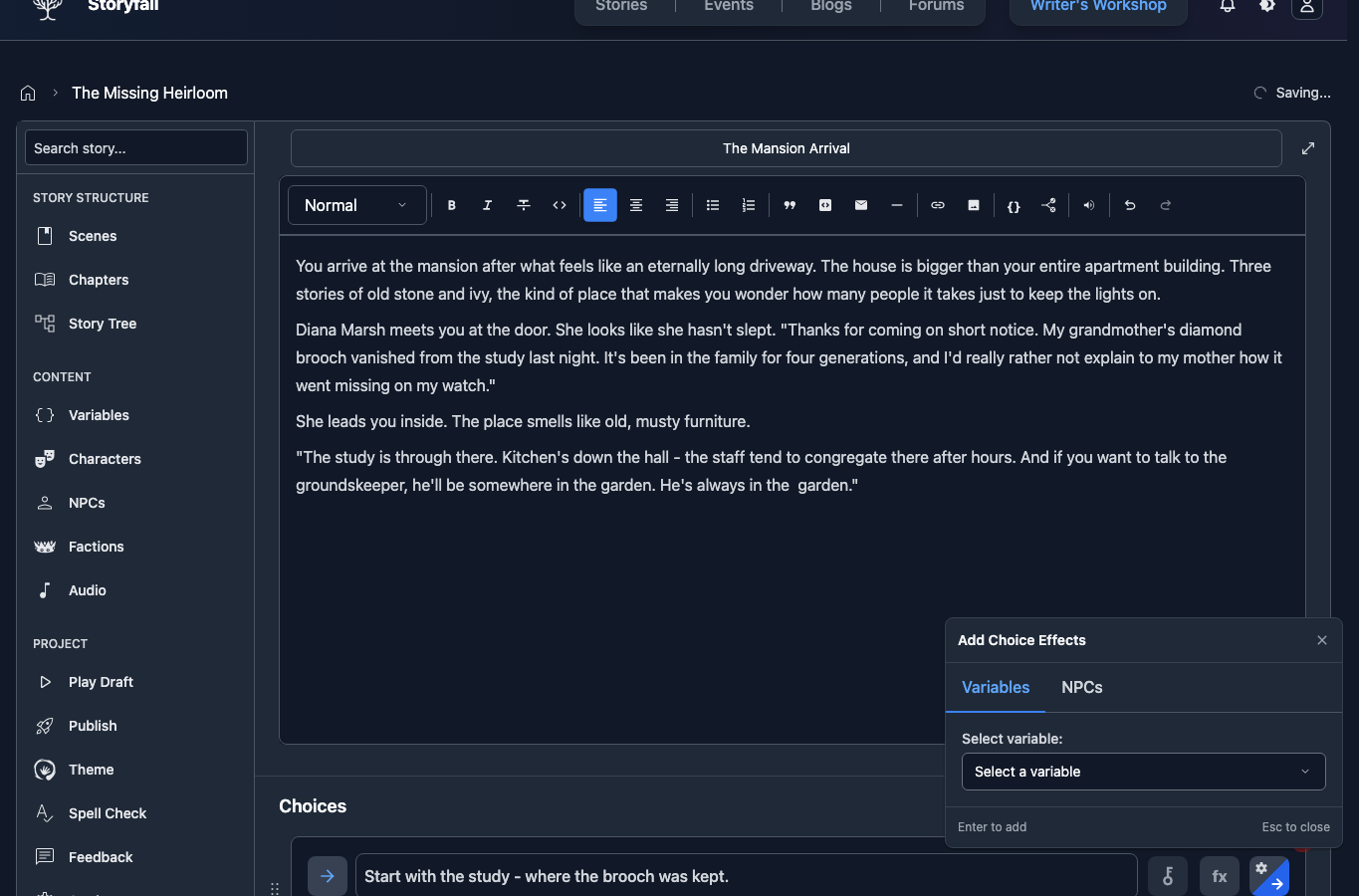
- Configure the effect:
- Select the variable to modify.
- Choose the operation (set, add, subtract).
- Enter the value.
Example Choice with Effects
Choice: “Buy health potion (50 gold).”
Effects:
goldsubtract50.has_health_potionset totrue.
Conditional Effects (Functions)
Effects can have their own conditions, so they only fire when a variable, NPC, or faction meets certain criteria. This lets you create effects that respond to the current state of the story.
Adding a Condition to an Effect
- Click the fx button on a choice or scene.
- Under the IF (optional) header, click ”+ Add condition”.
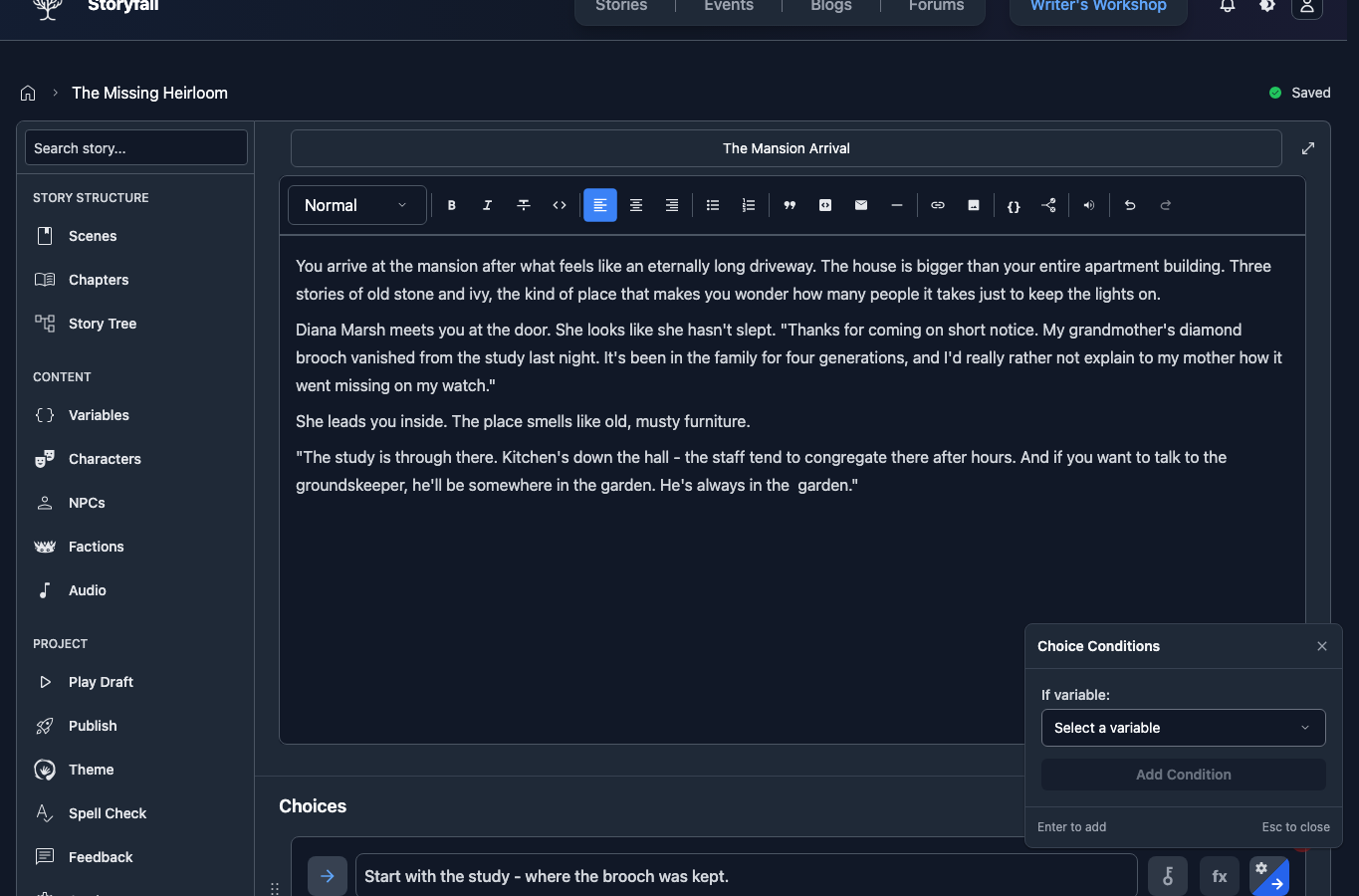
- Choose a variable, NPC, or faction to check.
- Select an operator and enter a comparison value.
- Under THEN, configure the effect as usual (target, operation, value).
You can add multiple conditions and join them with AND or OR. Conditions joined with AND must all be true. Conditions joined with OR only need one to be true.
Example
Choice: “Search the room”
cluesadd1(always fires).- IF
perception >= 15THENfound_secret_passageset totrue.
Effects with conditions appear in a special card format showing the IF/THEN logic, making them easy to distinguish from simple effects.
Engine Tracking Conditions
The engine already tracks how many times the player has visited each scene and clicked each choice. You can read those counts directly in conditions instead of maintaining a bookkeeping variable for every flag.
These counts are for the current playthrough. If the player uses Restart Story, scene visit and choice click counts start over for conditions, formulas, and text variations. The journal still keeps the earlier journey.
Scene visit counts
Pick a Scene as the condition target and choose a comparison (e.g. visits >= 2). The count goes up when the player enters the scene, before its choices and rich text are evaluated, so on the first visit visits >= 1 is already true on a choice inside that same scene. A scene the player has never entered has a visit count of 0. Use this to reveal text the second time someone returns to an area, or to show specific text on first entry.
Choice click counts
Pick a Choice as the condition target and choose a comparison (e.g. clicks >= 1). The count goes up when the choice is clicked. A choice the player has never clicked has a click count of 0. Use this to hide a dialogue option after it has been picked, or to gate later content based on an earlier interaction.
Printing counts in text
You can also drop the count straight into scene text. In the scene editor, type { to open the variable picker, choose a Scene visit count or Choice click count entry, and pick the scene or choice you want. The current count renders inline (e.g. You've stopped here 2 times.). A scene that has never been entered prints 0; the same holds for a never-clicked choice.
Random Effects
Effects support randomized values, letting you create unpredictable outcomes like variable damage, loot drops, and skill checks.
Random Value Types
Instead of entering a static number for an effect’s value, you can use one of these formats:
| Format | Example | Result |
|---|---|---|
| Range | 5..15 | Random integer between 5 and 15. |
| Options | oneOf(5, 10, 15) | Picks one numeric value. |
| Options | oneOf("common", "rare") | Picks one quoted string value. |
| Dice | 2d6+3 | Rolls 2 six-sided dice, adds 3 (result: 5-15). |
| Variable | EnemyHealth - PlayerDamage | Evaluates the expression using current values. |
Dice notation supports modifiers: 1d20-5, 3d8+2, 4d6.
In the visual effects panel, click ”+ Advanced” and choose One of to
add, remove, or edit random option rows. Number variables use number rows;
string variables use text rows.
In the code editor, string options inside oneOf(...) must be quoted.
Literal comma strings use regular quotes, e.g. "Hello, world".
Probability (Chance to Fire)
Each effect can have a probability that determines whether it fires at all:
- Always (default): The effect always applies.
- Percentage: A fixed chance, e.g. 70%.
- Formula: A dynamic chance based on variables, e.g.
0.5 + speech * 0.02(base 50% + 2% per speech point).
Formulas can reference number variables, NPC sentiment, faction sentiment, scene visit counts, and choice click counts. Missing references default to 0.
Setting Up Random Effects
- Edit a choice and open the Effects section.
- Add an effect and click ”+ Advanced”.
- Choose a value type: Static, Range, Options, Dice, or Variable.
- Optionally set a Chance: Always, Percentage, or Formula.
Example: Combat with Variable Damage
Choice: “Attack the dragon”
- Effect:
dragon_healthsubtract2d6+3(5-15 damage). - Probability: 70% (chance to hit).
If the probability check fails, the effect is skipped entirely. If it passes, the dice are rolled and the resolved value is applied. Players see the actual result (e.g. “dragon_health -12”), not the formula.
Example: Skill Check
Choice: “Persuade the guard”
- Effect:
guard_convincedset totrue. - Probability formula:
0.3 + charisma * 0.03.
With charisma at 10, this gives a 60% chance of success.
Formula Values
Effect values can be arithmetic expressions that read other variables, NPC sentiment, or faction sentiment at the moment the effect fires. Use these when a constant won’t do, like “subtract the player’s damage from enemy health” or “reduce gold by 10% of the current balance”.
How to Add a Formula
- Edit a choice and open the Effects section.
- Pick a numeric target (a number variable, NPC, or faction).
- Click ”+ Advanced”, then click Variable.
- Pick an operand from the dropdown, then Add modifier to combine more operands with
+,−,×, or÷.
The formula runs every time the effect fires, using the current values.
Formula Operands
| Operand | How to pick it | Stored as |
|---|---|---|
| Variable | Pick a number variable from the dropdown | EnemyHealth |
| NPC sentiment | Pick an NPC entry (prefixed with npc:) | npc:Guard |
| Faction sentiment | Pick a faction entry (prefixed with faction:) | faction:Rebels |
| Scene visits | Pick a scene visit entry | scene:<id> |
| Choice clicks | Pick a choice click entry | choice:<id> |
| Number | Pick Number… and type a value | 10, 0.5 |
Modifiers are combined left-to-right with standard math precedence (× and ÷ first, then + and −).
Scene and choice formula operands use stable IDs behind the label. Renaming a scene or changing a choice’s text does not break saved formulas.
Examples
Damage calculation. Set the enemy’s health to their current health minus the player’s damage:
- Target:
EnemyHealth - Operation: Modify
- Value:
EnemyHealth -= PlayerDamage
Percentage cost. Subtract 10% of gold:
- Target:
Gold - Operation: Subtract
- Value:
Gold * 0.1
Reputation-modified reward. Add the base reward plus half the guild’s sentiment:
- Target:
Gold - Operation: Add
- Value:
BaseReward + faction:Guild / 2
Chaining Effects
When a choice has multiple effects, each one reads the values left behind by the previous effect. So if effect #1 sets CounterA = CounterA + CounterB and effect #2 sets Result = CounterA * 2, effect #2 sees the new CounterA.
Name Resolution
Formula names are case-insensitive: EnemyHealth, enemyhealth, and ENEMYHEALTH all mean the same variable.
Spaces vs underscores. If your variable is named Enemy Health (with a space), the formula builder automatically writes it as Enemy_Health since formulas can’t contain spaces between tokens. If you happen to have two entities that differ only in spaces vs underscores (say Enemy Health and enemy_health), the save will fail with an “Ambiguous reference” error, because the formula Enemy_Health would match both. Rename one entity to disambiguate.
Unknown names resolve to 0. Typos silently return zero at runtime (so the editor rejects them at save time if it can). Double-check names when a formula produces unexpected results.
Multiply and Divide on NPCs / Factions
If you use Multiply or Divide on an NPC or faction the player hasn’t discovered yet, the effect is silently skipped: no sentiment change, no toast, and the NPC stays hidden. The player is “at 0” implicitly, so multiplying by any number collapses to 0 and dividing isn’t meaningful. Revealing the NPC as a side-effect of what the writer treated as a math operation would also be surprising.
To seed a starting sentiment on an undiscovered NPC, use Set, Add, or Subtract instead. Those operations will discover the NPC and apply the intended starting value.
Editing Effects as Code
For choices with many effects (e.g. a combat round with several weighted or random damage rolls), the click-driven panel can become tedious. Every effects panel has a “Code Editor” button at the top that opens a code editor where you can type all the effects at once. One effect per line, close to how the panel displays them.
The full grammar reference - variable effects, probability prefixes, conditionals, NPC/faction effects, audio, dynamic-choice tag-property references, dropdown-choice options, error handling - lives in the dedicated Code Editor docs.
Example: Relationship System
A simple relationship tracking system:
1. Create an NPC
Create an NPC called “Marcus” with a starting sentiment of 0.
2. Add Effects to Choices
Scene: Meeting Marcus
Choice: “Help Marcus carry supplies” (+10 sentiment).
- Effect:
Marcusadd10.
Choice: “Refuse to help” (-5 sentiment).
- Effect:
Marcusadd-5.
3. Use Conditional Text
Later Scene:
{Marcus >= 20: Marcus greets you warmly. "Friend! I'm glad you're here."}

{Marcus < 0: Marcus avoids eye contact. "What do you want?"}
4. Gate Content
Choice: “Ask Marcus for help”
Condition: Marcus >= 15.
If the condition isn’t met, the choice won’t appear or will be disabled.
Common Patterns
Health System
player_health = 100
max_health = 100
Choices can damage or heal, conditions show different text based on health ranges.
Inventory
has_key = false
gold = 50
potion_count = 0
Track items as booleans or quantities.
NPCs (Non-Player Characters)
NPCs are special character entities you can track throughout your story. They work similarly to variables but are designed specifically for tracking characters.
Creating NPCs
NPCs have built-in properties:
- Name: The character’s name.
- Description: Who they are.
- Faction: Optional group affiliation.
- Sentiment: Relationship value (-100 to 100).
- Discovered: Whether the reader has met them. NPCs and factions can be discovered through a scene on-entry effect or a choice effect, revealing them to the reader at the right moment in the story.
Using NPCs
NPCs can be used in conditions and effects just like variables:
Condition Example:
{Marcus >= 20: Marcus greets you warmly.}Effect Example: When creating a choice effect:
- Target: Marcus (NPC).
- Operation: Add.
- Value: 10.
This increases Marcus’s sentiment by 10 points.
Factions
Factions represent groups or organizations in your story. They work like NPCs but represent collective entities.
Creating Factions
Factions have similar properties to NPCs:
- Name: The faction name.
- Description: What the faction represents.
- Sentiment: Reputation value (-100 to 100).
- Discovered: Whether the reader knows about them.
Using Factions
Factions are useful for tracking reputation with groups:
Condition Example:
{Rebels >= 50: The rebels trust you enough to share their plans.}Linking NPCs to Factions: When an NPC belongs to a faction, you can use both individual and group reputation in your story logic.
Faction Patterns
Multiple Factions: Create opposing factions where helping one hurts the other:
- Guild reputation +10.
- Thieves reputation -5.
Faction Unlocks: Use faction reputation to unlock story content:
{Merchant Guild >= 75: You gain access to the exclusive trading routes.}Next Steps
- Characters - Create playable characters with per-character variable defaults.
- Input Choices - Collect text input and store it in variables.
- Editor - Learn more about the story editor.
- Publishing Your Story - Share your work with readers.