Blog Posts
Write articles and send newsletters to your audience on Storyfall. Blog posts let you share updates, behind-the-scenes content, writing advice, and anything else you want to communicate with your readers.
Creating a Blog Post
To create a new blog post:
- Navigate to your Workshop.
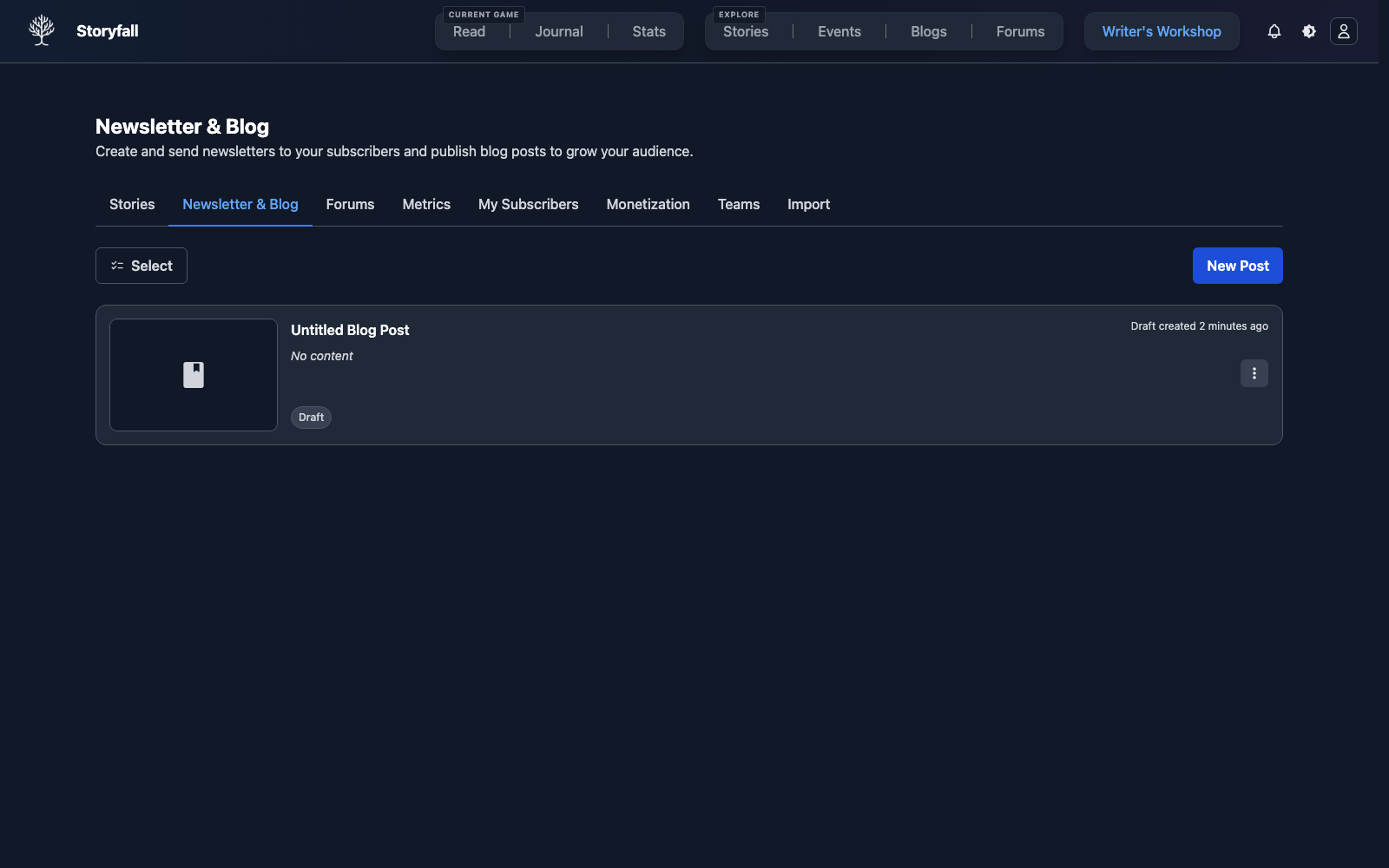
- Click on the Newsletter & Blog tab.
- Click “New Post”.
- The full-page blog editor opens.
Writing Your Post
The blog editor uses the same rich text editor as story scenes, so you already know how to use it:
- Bold, italics, and other text formatting.
- Headings and subheadings.
- Bulleted and numbered lists.
- Links and embedded media.
- Block quotes.
- Polls (see below).
Your work is auto-saved as you write, so you never have to worry about losing progress.
Cover Images
Upload a cover image to make your blog post stand out:
- Click the cover image area at the top of the editor.
- Upload an image from your device.
- The image will be displayed at the top of your published post.
A compelling cover image helps your post get noticed when readers browse your profile or receive notifications.
Publishing
When your blog post is ready to share:
- Click the “Publish” button.
- The post becomes visible to all readers.
- A new draft is automatically created so you can continue editing.
You can keep refining your post even after publishing. Any changes you make will be in draft form until you publish again.
Content moderation
Publishing runs your post through automated content moderation, and so do comments. Blog posts are treated as articles, not fiction, so they are held to a stricter standard than stories: content depicting violence or self-harm is not allowed in posts or comments, along with sexual content involving minors, threats, and hateful content. If a publish is blocked, revise the flagged content and publish again.
Subscriber Newsletters
When you publish a blog post, your subscribers are automatically notified. Blog posts double as newsletters.
You can track how those emails perform in Workshop > Metrics. The Blog Performance section shows your average open rate across sent blog emails, and the Newsletter & Blog tab shows each published post’s open rate beside its views, likes, and comments.
Open rate depends on email clients loading images, so it is best used as a directional signal rather than an exact reader count.
Managing Posts
Blog posts have three states:
Draft
- Work in progress, only visible to you.
- Edit freely without affecting anything public.
- Publish when ready.
Published
- Visible to all readers on Storyfall.
- Appears on your profile’s Blogs tab.
- Subscribers are notified.
Archived
- Removed from public view.
- History and content preserved.
- Unarchive at any time to restore the post.
To change a post’s state, use the options menu on the post in your Workshop’s Newsletter & Blog tab.
Reader Engagement
Published blog posts have built-in engagement features:
Views
Views are tracked automatically. You can see how many readers have visited each post.
Likes
Readers can like your blog posts to show appreciation. Like counts are visible on the post.
Comments
Each blog post has a threaded comments section where readers can:
- Leave feedback and reactions.
- Reply to other comments.
- Like other readers’ comments with the heart icon. You can’t like your own.
- Start conversations about your content.
You can reply to comments from the post page.
Email Open Rate
For posts sent to subscribers, Storyfall tracks how many sent blog emails were opened. Posts without any sent blog emails show N/A in the Newsletter & Blog tab.
Blog on Your Profile
All published blog posts appear on your profile’s Blogs tab.
Tags
Add tags to your blog posts to help readers find content by topic:
- Click “Add” in the tags section.
- Choose relevant categories (e.g. writing tips, story updates, announcements).
- Tags help organize your posts and improve discoverability.
Polls
Embed polls in your blog posts to gather reader feedback, ask questions, or let your audience weigh in on story decisions. Polls are added through the rich text editor, just like any other content.
When creating a poll, you can configure:
- Question: What you’re asking.
- Options: Two or more choices for voters.
- Multiple selections: Allow voters to pick more than one option.
- Results visibility: Show results always, only after voting, or never.
Each user can vote once per poll. Voters can undo their vote if they change their mind.
Next Steps
- Forums - Build community discussion spaces for your readers.
- Publishing Your Story - Share your interactive stories with readers.
- Monetization - Earn from your writing through subscriptions.